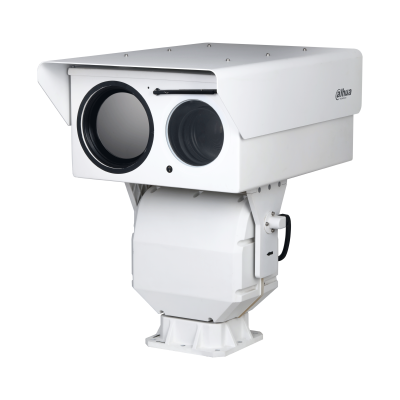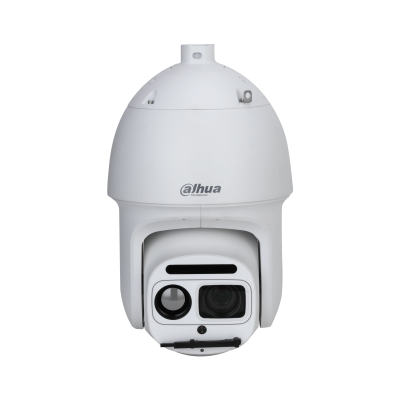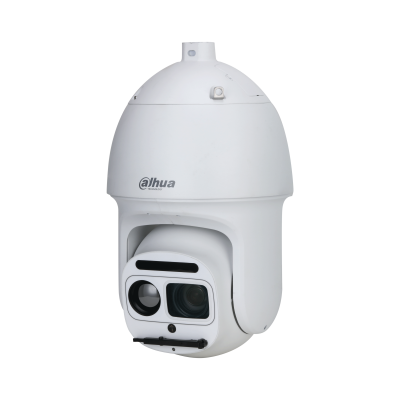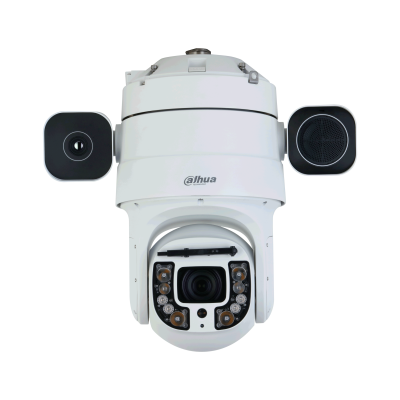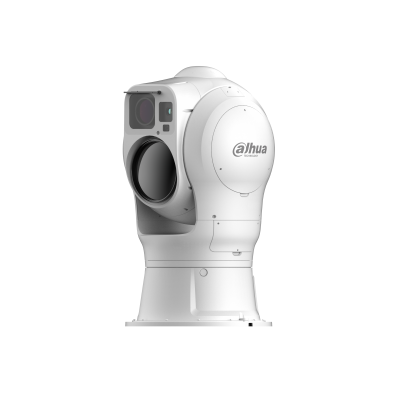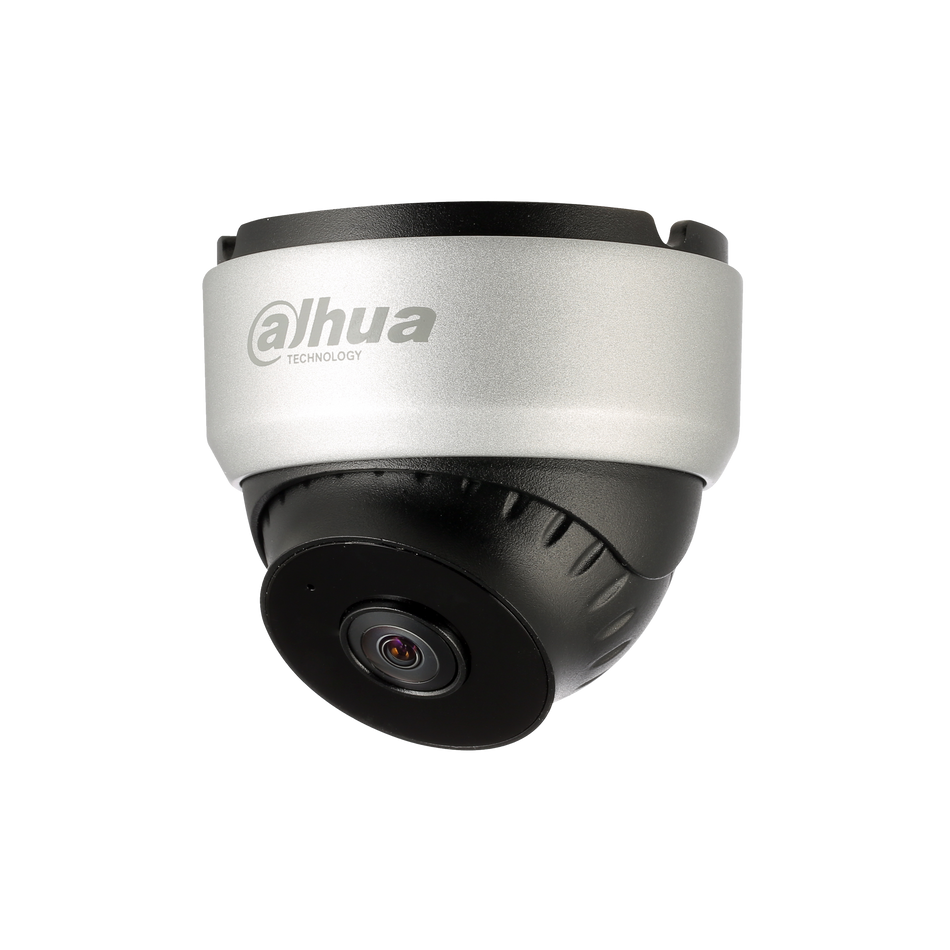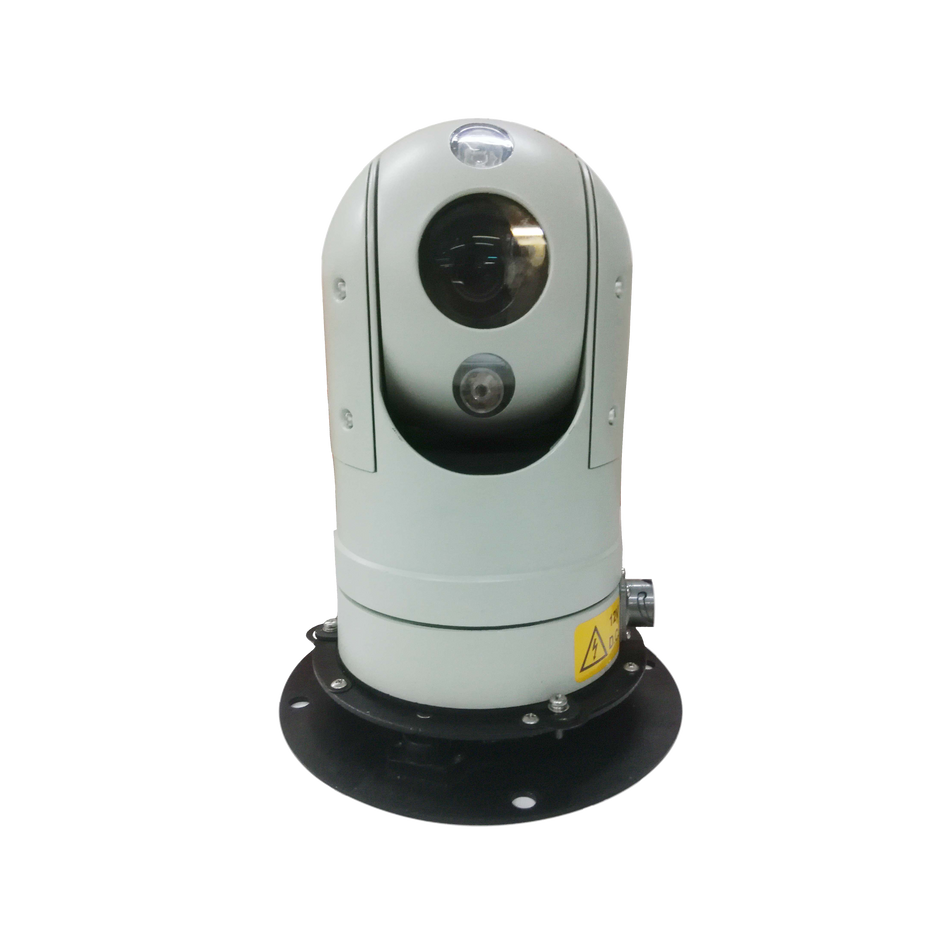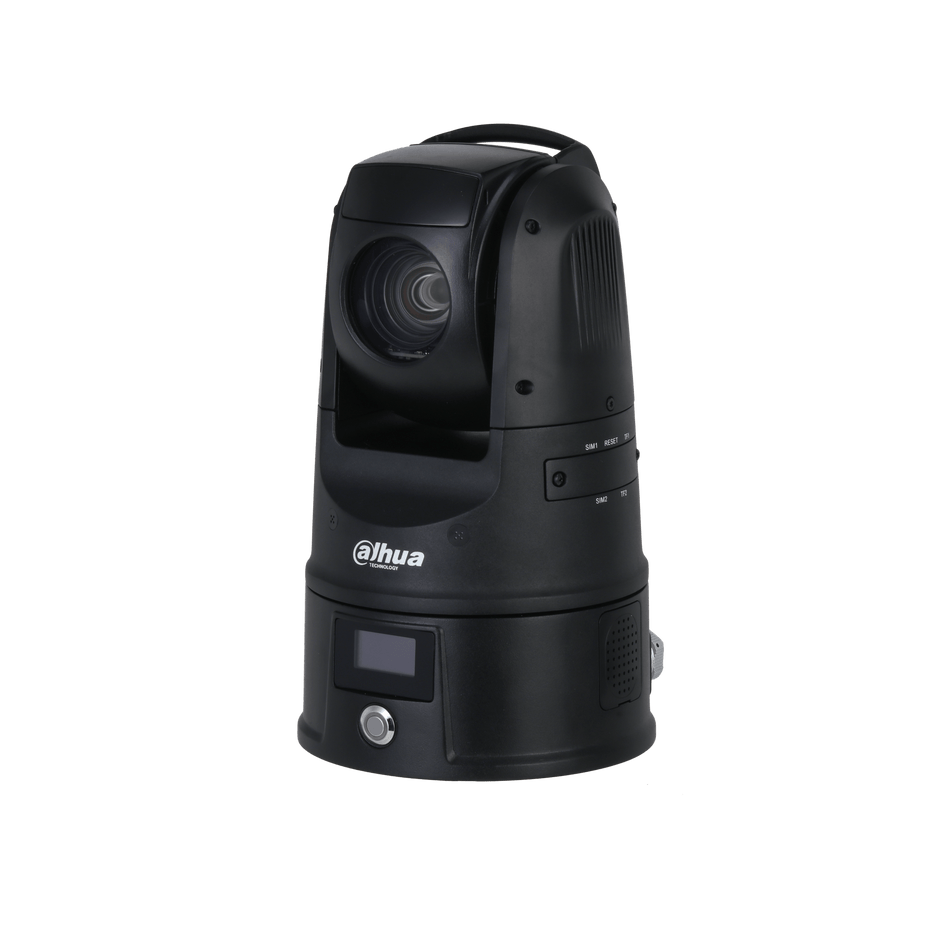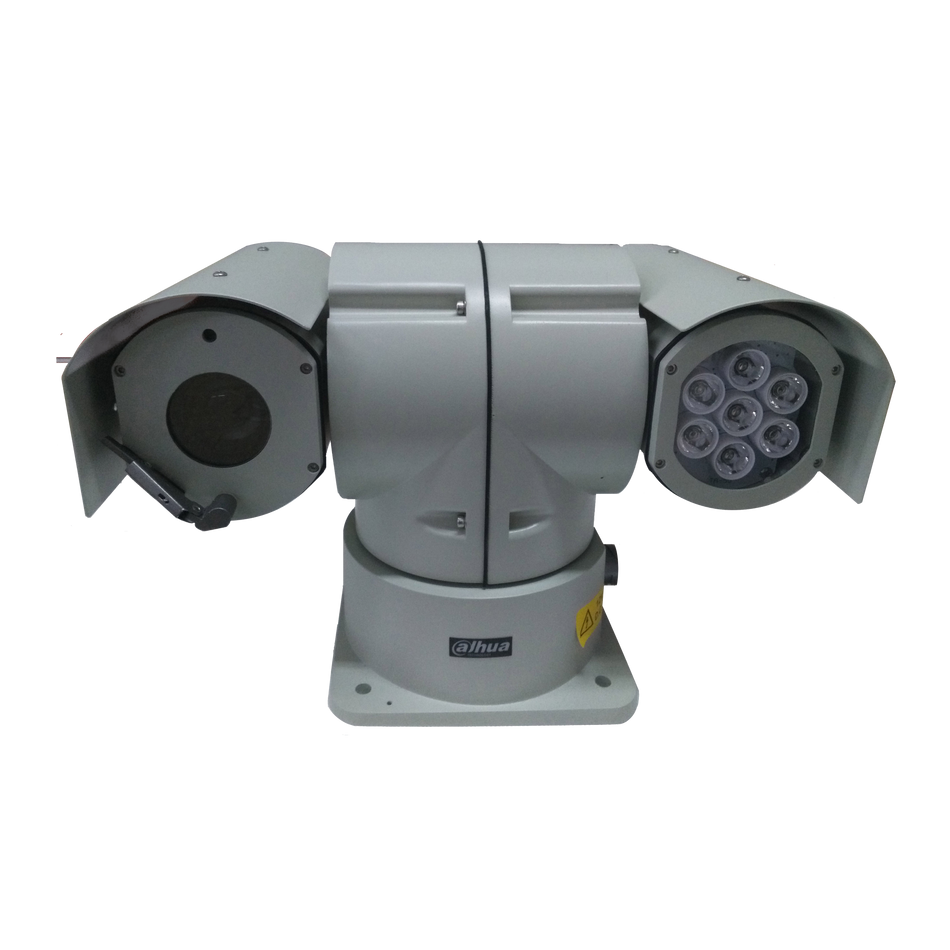

DAHUA Cameras are renowned for their high-quality imaging and versatile recording options, including the ability to record directly onto a MicroSD Card. This feature provides an additional layer of data security and convenience, especially in situations where network storage may not be accessible or as a backup solution. Here's a step-by-step guide on how to install an SD Card in your DAHUA Camera.

Why Use an SD Card in DAHUA Cameras?
The SD Card in DAHUA Cameras serves multiple purposes:
- Local Recording: Acts as a primary or backup recording solution.
- Ease of Use: Simplifies the process of retrieving footage for review.
- Data Security: Protects against data loss in case of network issues.
Prerequisites
Before you start, make sure you have:
- A DAHUA Camera that supports SD Card recording.
- A compatible MicroSD Card (check the camera's specifications for the recommended storage capacity and speed).
Step-by-Step SD Card Installation
Step 1: Open the Camera Case
Begin by removing or opening the case of your DAHUA IP Camera. The process for this may vary depending on the model you have, so refer to your camera's user manual for specific instructions.


Step 2: Locate the SD Card Slot
Once the camera case is open, locate the SD Card slot. It is typically found in a compartment designed to protect the SD Card from dust and physical damage.
Step 3: Insert the SD Card
Carefully insert the MicroSD Card into the slot, ensuring that it is correctly aligned with the slot and the metal contacts are facing down. Gently push the card in until it clicks into place.
Step 4: Verify SD Card Installation
After inserting the SD Card, it's important to check that it has been properly detected and installed by the camera. To do this, navigate through the camera's main menu:
- Go to Main Menu
- Select Setup
- Choose Storage
- Then, select Destination
- Finally, check under Local for the SD Card
Here, you should see the SD Card listed as a storage destination, confirming that it has been successfully installed and is ready to record.

Step 5: Close the Camera Case
Once you have confirmed that the SD Card is properly installed, close the camera case, ensuring it is securely fastened to protect the camera and the SD Card from potential damage.
Installing an SD Card in your DAHUA Camera is a simple process that adds an extra layer of recording flexibility and security to your surveillance system. By following these steps, you can ensure that your camera is ready to capture footage locally, providing you with peace of mind knowing that your video data is safely stored. Whether you're using the SD Card as a primary recording medium or as a backup, this guide has you covered for a successful setup.