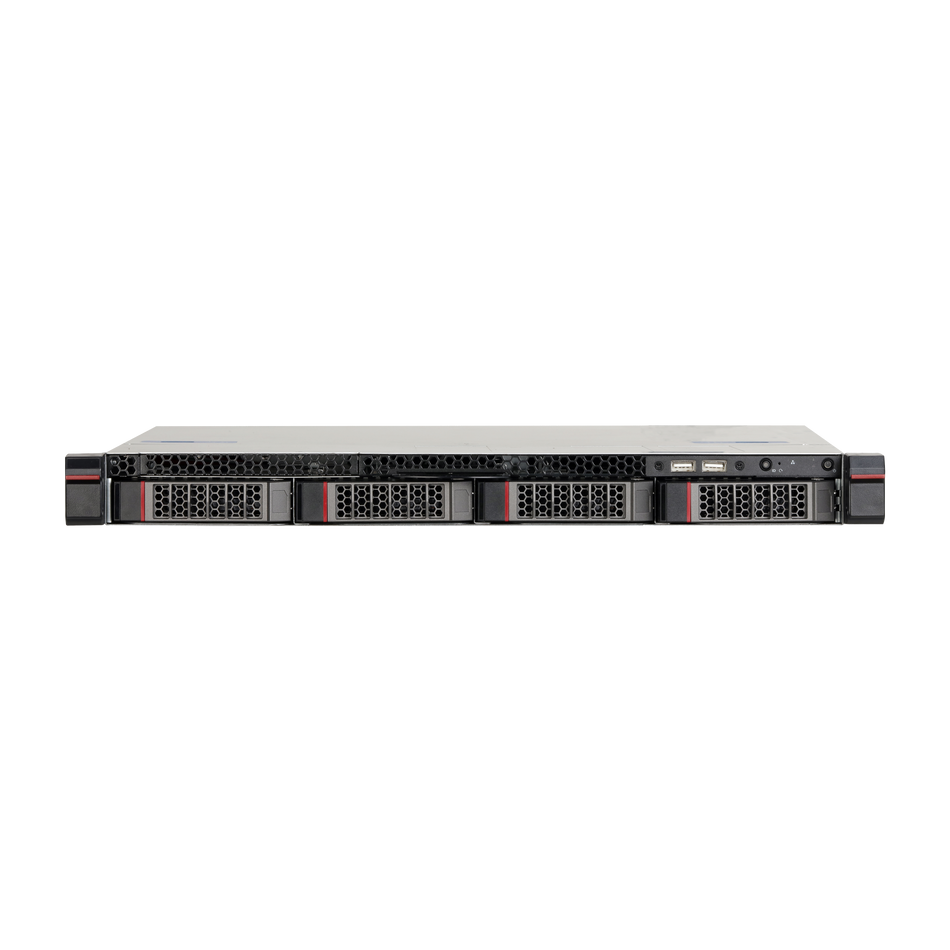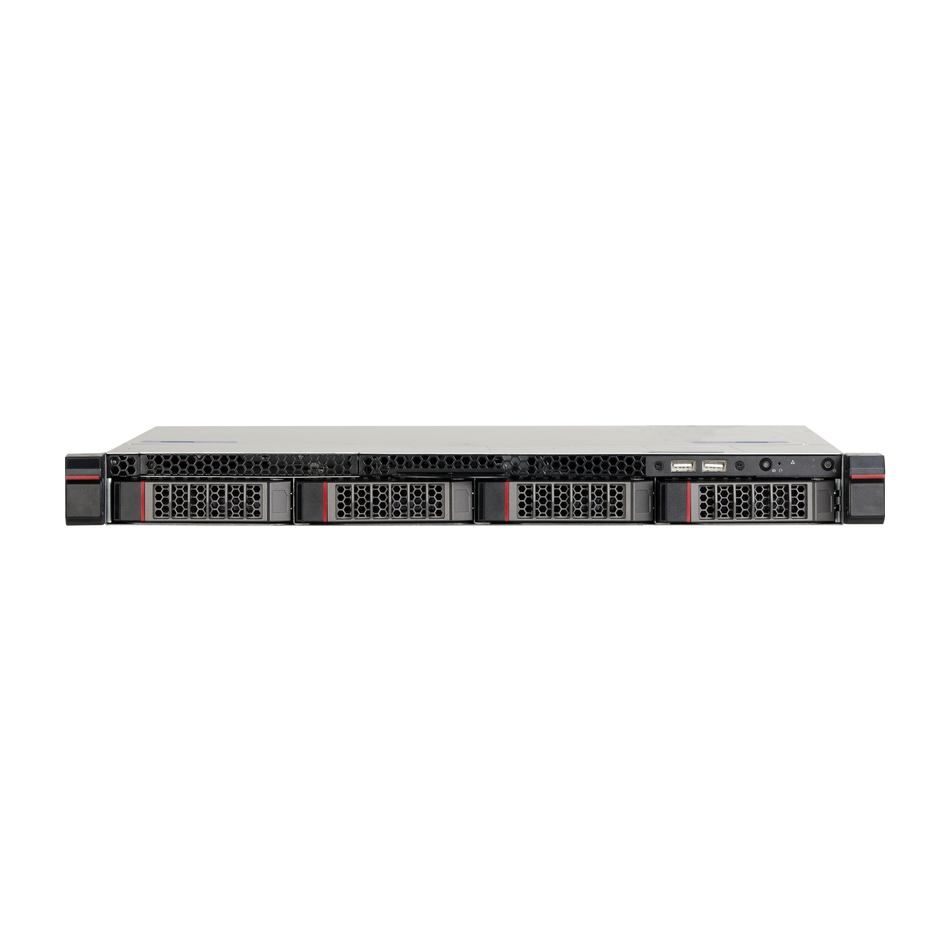

DAHUA's AcuPick is a state-of-the-art video search engine that revolutionizes the way we sift through surveillance footage. With its ability to pinpoint human targets and even those who interact with missing objects, AcuPick streamlines the search process, offering a blend of speed, accuracy, and convenience. This article will guide you through the utilization of AcuPick on the DAHUA NVR's Local UI, making the search for specific events or individuals a breeze.
Prerequisites:
- Equipped with one or more DAHUA Cameras that support AcuPick.
- A DAHUA NVR that also supports AcuPick.
Step by Step Instructions for Quick Search for Human Target:
-
Access the Search Feature:
- From the live view on the NVR's local interface, right-click anywhere on the screen and select "Search"
- .

Select a Camera and Date:
- Check the box for a single camera on the right. Note that AcuPick will only function with one camera selected.
- Choose a date from the calendar at the top right that has a dot underneath it, indicating available footage.
- Begin playing the recorded footage and ensure the AI Data Icon is selected above the timeline
- .

Identify and Select the Target:
- Once you find the person you want to track, use the AcuPick icon above the timeline.
- Click on the blue box around the person and then click the Magnifying Glass icon below the box
- .

Refine Your Search:
- Select the channels you want to search from the Channel drop-down menu.
- Adjust the time period using the Period, Start Time, and End Time options.
- After setting these, click on Search to refine the results.
- Adjust the Similarity slider to filter the results based on the accuracy of the person's appearance
- .

Playback and Fullscreen Viewing:
- Double-click on any of the result images to play a recorded clip, which automatically plays 10 seconds before and after the event.
- To view in fullscreen, double-click on the video playback
-
- .


- .
Step by Step Instructions for Quick Search for Human Target Who Took a Missing Object:
-
Initiate the Search Process:
- Follow steps 1 to 3 from the Quick Search for Human Target instructions to access the footage and identify the missing object
- .

Apply the Missing Object Filter:
- Once the object that went missing is visible, click the AI Filter Icon above the timeline and check the "Human" box
- .

Draw and Search:
- Draw a box around the missing object and click the Magnifying Glass Icon below the box to initiate the search based on the missing object filter.
- The timeline will update to only show instances when a person walked through the box, making it easier to identify when and by whom the object was taken
- .

Use AcuPick for the Identified Person:
- After finding the moment the object was taken, use the AcuPick icon and the blue box around the person involved, followed by the Magnifying Glass icon to search for the individual throughout the footage
-
- .

-

- .
AcuPick is a powerful tool that enhances the efficiency of video surveillance by providing a quick and accurate search for human targets. Whether you need to locate a specific individual or track someone who has interacted with a missing object, AcuPick delivers a user-friendly and effective solution. By following these steps, you can confidently utilize the AcuPick feature on your DAHUA NVR, making the process of video retrieval both simpler and more precise.