

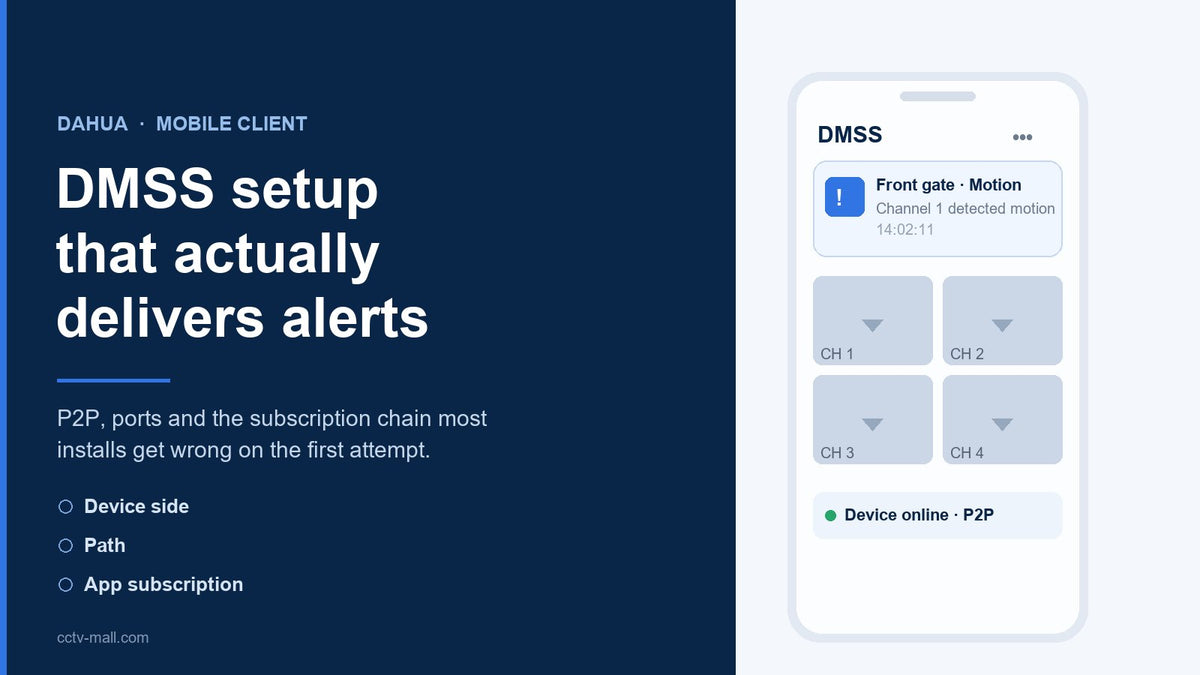
Most Dahua recorders ship with a sticker that tells you to download an app and scan a code. That single instruction hides a three-part chain — the recorder has to be reachable, the path out of the local network has to exist, and the phone has to be subscribed to the right events. When one link is missing, the app gives you the same unhelpful answer: a grey device tile or an inbox that never fills.
This guide follows the order the recorder expects. We start on the device, because a settings mistake there cannot be fixed from the phone. Then we cover the two ways to add a device, the four switches that decide whether Dahua DMSS alerts reach your lock screen, and the port and bandwidth numbers you need before you promise a client remote view over a 4G router.
Every menu path below is taken from the Dahua manuals, not from memory, and the section numbers are listed at the end so you can check them against your own firmware revision.
TL;DR
- Enable P2P on the recorder first: Main Menu > NETWORK > P2P, then confirm Status: Online before you touch the app.
- Add the device by scanning the Device SN QR code. No port forwarding, no DDNS, no static IP.
- Push alerts need three things: Mobile Push Notifications enabled on the device, an armed event with a snapshot, and notification permission on the phone.
- If you ever press Clear Subscription Info on the camera, the phone goes silent until you subscribe again — that is by design, not a bug.
Recommended Dahua network recorders
A rotating selection from our current stock. Availability and pricing are confirmed at checkout.


Check stock or request a quote
Enter a Dahua part number to see live availability, or send it straight to our team for a price and lead time.
What DMSS Is, and What It Is Not
DMSS is the mobile client for Dahua recorders, cameras and door stations. It runs on phones and tablets, it is free, and it does not record anything itself. The footage stays on the recorder's hard drive or on the camera's SD card; the app only requests a stream and displays it.
There is no cloud archive behind the app. If the recorder is off, the app can only show what the camera stored locally, and only for cameras with a card and a working record plan.
The naming causes a second round of confusion. The current line is DMSS for phones and DMSS HD for tablets; gDMSS is retired, and the desktop tool is SmartPSS, a different program with a different login flow. Mixing guides for these three is the most common reason a first setup stalls halfway.
One more thing worth saying plainly: the app is not a security boundary. It is a viewer that authenticates with the same administrator password as the recorder. If you hand a client a phone with the admin account, you have handed them the ability to delete recording schedules, format the disk and change the network configuration.
The Three Legs of Remote View
Remote view stands on three independent legs, and a failure on any one of them looks identical from the phone — which is why people change the wrong setting four times in a row.
Leg one is the device. The recorder must have P2P enabled and must hold a working WAN connection. The Dahua manual describes P2P as a private-network-penetration service: instead of a dynamic domain name, port mapping or a transit server, the recorder opens an outbound tunnel and you reach it through its serial number. Outbound means the recorder dials out; your router never accepts an inbound connection on its behalf.
Leg two is the path. Because the tunnel is outbound, a router that blocks DNS or drops long-lived idle sessions breaks remote access without breaking local access. The device will look perfectly healthy on the local monitor while the app reports it offline.
Leg three is the subscription. The device has to be bound to your DMSS account, and the account has to be allowed to receive notifications by the phone's operating system. A device that streams fine but never alerts is almost always a leg-three problem.

| Leg | What it needs | Fast test | Typical failure |
|---|---|---|---|
| Device | P2P enabled, WAN link up | Local monitor shows Online under P2P | P2P left disabled after a factory reset |
| Path | DNS and outbound TCP/UDP allowed | Recorder can reach an NTP or update server | Guest Wi-Fi or carrier NAT that drops idle sessions |
| Subscription | Device bound to account, notifications allowed | Trigger motion and wait 30 seconds | Push disabled, or OS battery optimisation |
Prepare the Recorder Before You Touch the App
Ten minutes here saves an hour of guessing later. Work through these five checks on the local monitor or the web interface, in order.
1. Note the firmware version. Go to Main Menu > INFO > Version and write the system version down. App menus shift between firmware generations, so a guide written for one revision can send you looking for a toggle that has moved. If the recorder is more than two years behind, plan the upgrade before the app work rather than after.
2. Fix the clock. Open Main Menu > SYSTEM > General > Date & Time and confirm the time zone and DST rule match the site. Alerts stamped with the wrong hour are worse than no alerts, because they make you doubt the recording itself. Turn on NTP if the recorder has a route to a time server.
3. Enable P2P. Open Main Menu > NETWORK > P2P, tick the enable box and click Apply. Two QR codes appear: one under Mobile Client for downloading the app and one under Device SN for adding the device. Wait for the status field to read Online. The manual is explicit that P2P consumes device traffic while the device is online, so on a metered link this is a cost decision, not just a convenience one.
4. Leave push on, turn off what you do not use. In Main Menu > SYSTEM > Security > System Service the Mobile Push Notifications option is enabled by default; keep it that way. The same screen exposes CGI, ONVIF, NTP and SSH, and the manual carries an explicit warning that these services are a safety risk when they are not needed. On a finished site, disable what the integration does not use. On a bench, leave CGI and ONVIF on until commissioning is done.
5. Record the LAN fallback values. If the app has to be added by IP instead of serial number, you need the HTTP port, the TCP service port and the RTSP port. Dahua's defaults are 80, 37777 and 554. Write them on the commissioning sheet; when a client calls two years later, nobody remembers whether the installer changed the service port.
Add the Device in DMSS
Register an account with an email address you control, confirm the verification mail, then add the device. There are two practical methods, and one legacy method you should only use if a site already depends on it.
Method A — serial number (recommended). In the app, choose to add a device by scanning, then point the phone at the QR code under Device SN on the recorder's P2P page. The recorder's serial number and the tunnel are already paired, so there is nothing else to type. This works from anywhere the phone has data, not only from the site.
Method B — IP address (same network only). Use the IP, the service port 37777, and the administrator username and password. This is the right choice on an isolated site network with no internet, or while commissioning before the SIM card is active. If the app cannot find the device by IP, the phone is on the wrong subnet or the service port was changed — check those two things before assuming a hardware fault.
Method C — domain or DDNS. Only worth using when the site already runs a dynamic DNS service and inbound port mapping is part of the network design. It multiplies the failure modes and gains nothing over P2P for a single recorder.
Once the device is added, do three checks in sequence: open a live channel, open playback on the same channel, and rename the device to something a human can read. If live view works but playback is empty, the network is fine and the problem is in the recording schedule — a different article covers that path in detail, including the record-mode settings that quietly override a schedule.
Name every channel on site. "CH 3" means nothing to a client at 2 a.m.; "Loading bay east" does, and that name is what the push notification shows.
Make Push Alerts Actually Arrive
Push is the feature clients judge the installation by, and it has more moving parts than any other part of DMSS. The Dahua camera manual describes the mechanism precisely: when Mobile Push Notifications is enabled, the system sends the snapshot taken at the moment the alarm was triggered to your phone. That sentence contains two requirements — an alarm must fire, and a snapshot must exist — and most silent inboxes fail on one of them.
Device side. Confirm Mobile Push Notifications is on. Then confirm the event itself is armed and inside its schedule: motion detection, tripwire or intrusion, depending on the model. An event that is enabled but scheduled for a window that has passed will never fire, and the app will look broken while the recorder is behaving exactly as configured.
Snapshot side. The push carries an image, so the device needs somewhere to write it. Cameras with an SD card and a snapshot-on-alarm setting are the most reliable. Recorders push the channel snapshot, which depends on the channel being able to produce one — a camera that is offline, or whose stream is configured with a codec the recorder cannot decode, can still trigger a text alert with no picture, or nothing at all.
Subscription side. In the camera's basic-services page there is a Clear Subscription Info control. The manual is blunt about the consequence: after the subscription information is cleared, the phone will not receive alarms or event information, and you have to subscribe again. If a technician pressed that button while chasing an unrelated problem, the fix is not to reinstall the app but to re-subscribe the device to the account.
Phone side. Notification permission is granted per app, and both major mobile platforms now suspend background work aggressively. On iOS, check that notifications are allowed and that a Focus mode is not filtering the app. On Android, exclude DMSS from battery optimisation and confirm background data is allowed; a phone that sleeps the app will show alerts only when you open it. If push works on Wi-Fi but not on mobile data, the carrier's network or a data-saver rule is the suspect, not the recorder.
Test on the lock screen, not inside the app. An event listed in the app but never on the lock screen is a notification problem; an event that appears nowhere is an arming, schedule or snapshot problem.
Ports, Streams and Daily Bandwidth
Before you promise remote view over a 4G router, do the arithmetic. Remote view pulls the substream by default precisely because the main stream would burn through a mobile data plan in days.
| Port | Dahua default | Used for | Inbound mapping? |
|---|---|---|---|
| TCP service | 37777 | Private protocol, app add-by-IP, SmartPSS | LAN only, or yes for DDNS |
| HTTP | 80 | Web configuration page | No |
| RTSP | 554 | Third-party recorders, VMS, media players | No |
| P2P | outbound only | DMSS remote access by serial number | No |
| DNS / NTP | 53 / 123 | Name resolution, clock sync | No |
To size a link, use one formula: gigabytes per day = megabits per second × 10.8. A camera pushing a 2 Mbps main stream writes roughly 21.6 GB per day. At 4 Mbps the same camera writes 43.2 GB per day, and at 6 Mbps it writes 64.8 GB. A 0.5 Mbps substream covers a day in about 5.4 GB.
Two habits follow. Remote view should use the substream, or a 4 MP main stream becomes a data-plan problem disguised as an app problem. Retention should be built from the same arithmetic rather than from drive capacity — a 4 TB disk is not eight weeks of storage if four 6 Mbps channels record continuously.
Ten Reasons DMSS Push Fails
Work down this table in order. It is sorted by how often each cause appears on real installations, not by how interesting it is.
| # | Cause | How it looks | Fix |
|---|---|---|---|
| 1 | Push disabled on device | Live view works, inbox always empty | Enable Mobile Push Notifications, apply, restart app |
| 2 | Subscription cleared | Stopped working after a technician visit | Re-subscribe the device to the account |
| 3 | OS notification permission | Events appear in app, never on lock screen | Allow notifications, disable Focus / DND for the app |
| 4 | Battery optimisation | Alerts arrive only when the app is opened | Exclude DMSS from battery optimisation, allow background data |
| 5 | Event not armed or out of schedule | Nothing recorded either | Arm the rule, widen the schedule, check the day-of-week grid |
| 6 | Snapshot cannot be produced | Text-only alerts or silence | Enable snapshot on alarm, confirm storage is writable |
| 7 | P2P offline | Device tile grey, no live view at all | Check WAN, DNS, then P2P status on the device |
| 8 | Two phones, one account | Alerts land on the wrong handset | Audit logged-in sessions, remove the old device |
| 9 | Wrong client installed | Legacy menus do not match any guide | Use DMSS on phones, DMSS HD on tablets |
| 10 | Carrier or firewall drops idle tunnel | Works for minutes, then offline until reload | Move the recorder behind a stable link, or use a wired uplink |
Cause 8 is more common than expected: a client upgrades a phone, signs in on the new handset, and the old session stays active. Cause 10 makes people replace hardware that was never at fault — a tunnel that dies after ten minutes is a network policy symptom.
Deployment Checklist
Run this list before you leave site. Each row has a pass condition, so the check is objective rather than a matter of opinion.
| Check | Pass condition |
|---|---|
| Firmware recorded | Version written on the commissioning sheet |
| Clock and DST | Timestamp on a test recording matches the phone |
| P2P status | Online on the device, device tile green in the app |
| Push enabled | Toggle on, applied, survives a reboot |
| Subscription intact | Test motion produces a lock-screen alert within 30 s |
| Snapshot present | Alert shows an image, not just text |
| Channel names | Every channel named for its location |
| Playback | Remote playback opens on the same channel |
| Unused services off | SSH, CGI, ONVIF off where the integration does not need them |
| Password changed | Default credentials replaced, admin account documented |
If the site needs more recorders later, buy from the same family. Mixing generations inside one project is how a client ends up with two different app workflows and two different alert behaviours. The Dahua network recorder range lists the current families side by side, and matching cameras are grouped in the network camera collection.
FAQ
Is DMSS free, and does it need a subscription?Yes. There is no licence fee and no cloud plan. The device is the recorder you already bought; the app is a client. Anything offering you a monthly fee for "DMSS cloud recording" is a third-party service, not the Dahua client.
Should I install DMSS or DMSS HD?Use DMSS on phones and DMSS HD on tablets. The HD build is designed for a larger canvas and shows more channels per screen, which matters when a client monitors sixteen channels from an iPad in a reception area.
Why does the app say the device is offline while the local monitor looks fine?That combination points at the path, not the device. The recorder is healthy on the local network but cannot hold the outbound tunnel — usually DNS, an uplink that blocks long-lived sessions, or P2P being switched off after a reset.
Do I need port forwarding for remote view?No. P2P exists so you can avoid DDNS, port mapping and a transit server. Port forwarding is only relevant if you deliberately choose a direct connection method, and it adds exposure you then have to defend.
Why do I get alerts without a picture?The push is built around the snapshot taken when the alarm fires. If the device cannot produce that image — no writable storage, snapshot disabled, or a channel that is offline at the moment of the event — the alert degrades to text or disappears.
Someone pressed Clear Subscription Info. Do I have to reinstall the app?No. The device simply is not subscribed to the account any more. Re-subscribe it; reinstalling the app does not restore a subscription that was cleared on the device side.
Can I add a Dahua camera to DMSS without a recorder?Yes, if that camera has P2P support and its own storage for snapshots. On a multi-camera site, adding the recorder once is still the better architecture: one tunnel, one subscription, one place to fix.
What if I have lost the administrator password?Binding the device to DMSS is one of the documented reset routes: the app supplies a security code that the local reset page accepts. It only works if the device was bound before the password was lost, which is a reason to bind on day one rather than after the first incident.
Sources
- Dahua Network Video Recorder User Manual V2.4.2 — §5.10.18 P2P; §5.13.4.3 Resetting Password; §5.13.6.2 System Service, Table 5-87 Basic service parameters.
- Dahua Network Camera Web 5.0 Operation Manual V1.3.1 — §6 Basic services, Table 6-21 Description of basic services parameters (Mobile Push Notifications, Clear Subscription Info).
- Default ports (HTTP 80, TCP 37777, RTSP 554) as listed in the remote-device configuration table of the NVR manual.
- Dahua Technology — vendor product and support pages.
- ONVIF specifications — for integrators adding the recorder to a third-party VMS.
Remote view is only half of the alert chain. If the recorder is not recording in the first place, a perfect app setup produces a perfect push notification for an empty timeline — start with the record mode and schedule check, and use the email alert guide when you need a second delivery channel that does not depend on a phone. Sites with unstable uplinks are usually better served by both: push for speed, email for evidence.
If you are standardising a site and want the recorder, cameras and PoE budget resolved in one quote, the team can check stock against your channel list and confirm which models share the same firmware family.


