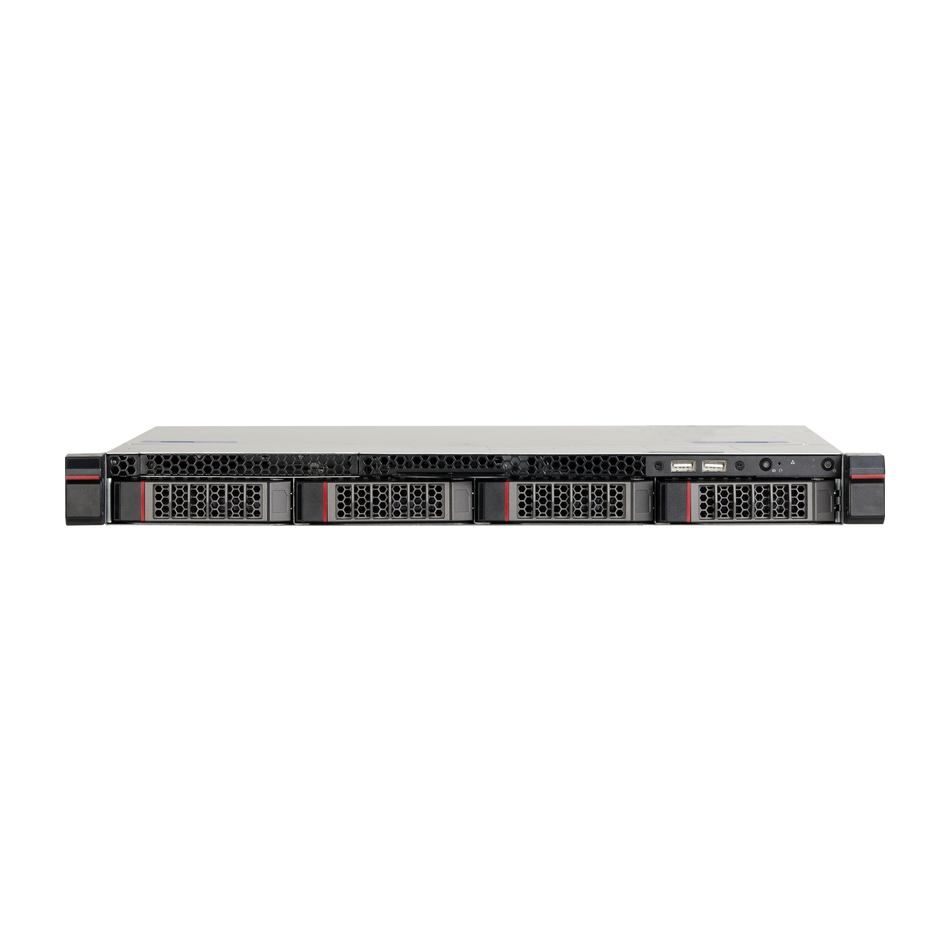

Field Note · Dahua NVR
A recorder that shows live video but has nothing to play back is one of the most common service calls in surveillance. Nine times out of ten the hardware is fine — the fault sits in one of three settings layers. This guide walks them in the order that finds the problem fastest.
TL;DR
- Recording needs three independent things: a writable disk, a schedule with a recording type drawn on it, and Recording Mode set to Auto.
- The single most-missed step is Record Mode. The manual states plainly that after you configure a schedule you must enable auto recording — a schedule alone records nothing.
- Disk Full = Stop silently ends recording when the drive fills. For most sites it should be Overwrite.
- If you tick Motion & Alarm (M&A), the separate Motion and Alarm record types become null — a classic "motion never records" cause.
- A disk set to Read-Only in Disk Manager will hold playback you can watch but record nothing new.
1. First, decide which symptom you actually have
"Not recording" describes four different failures. Ten minutes spent identifying the right one saves hours of changing settings that were already correct.
| What you observe | Likely layer |
|---|---|
| No HDD shown at all, or a disk error warning | Disk layer |
| Disk healthy, timeline empty all day | Schedule or Record Mode |
| General recording exists, motion events do not | Schedule record types |
| Recorded fine for weeks, then stopped | Disk full strategy or expired-file policy |
| Recording exists but cannot be found in playback | Playback search (wrong channel or date) |
Write down which row matches. The rest of this guide follows that order.
2. The three-layer model
Dahua's recorder will not write a single frame unless three conditions are true simultaneously. They live in three different menus, which is exactly why people fix two and miss the third.
Layer one — storage. A physical disk must be present, healthy, formatted, and set to read/write. This is Main Menu > STORAGE > Disk Manager.
Layer two — schedule. The recorder needs to know what kind of video to write, when. This is Main Menu > STORAGE > Schedule > Record.
Layer three — record mode. The recorder needs permission to record automatically. This is Main Menu > STORAGE > Record Mode, and it is the layer most often left on Manual or Off.
The manual is explicit about layer three: after you set a schedule for videos or snapshots, you must enable the auto record function so the system records according to that schedule. A schedule is a plan, not an instruction.
3. Layer one: is the disk actually writable?
Open Main Menu > STORAGE > Disk Manager. The list shows each drive's device name, physical position, properties, health status and free space. Three things can be wrong here, and only one of them is obvious.

The disk is missing. If no entry appears at all, the recorder does not see the drive. On a new installation this is usually an unseated SATA cable or a drive that was never formatted. On an existing installation it is usually a failing drive or a power issue. Check physical seating before suspecting the firmware.
The disk is present but set to Read-Only. This is the subtle one. A read-only disk still plays back old footage perfectly, so the operator sees a working recorder — while nothing new is written. The Properties column is a dropdown; make sure it says Read/Write.
The disk is present, healthy, but not formatted. An unformatted drive cannot be written. Formatting erases everything on it, so confirm with the customer first. Note that the format dialog offers to erase the HDD database as well — doing so also removes AI search data and uploaded audio files, so do not tick that box unless you intend to lose them.
While you are here, check free space. A drive at 99 percent with a Stop strategy will behave exactly like a recorder that has stopped working, because it has.
4. Layer two: build a schedule that actually records
Open Main Menu > STORAGE > Schedule > Record. The page has a channel selector, a pre-record setting, an ANR option, a redundancy option, and then the part that matters: the period grid.

Recording types. For each period you tick one or more types: General, Motion, Alarm, Motion & Alarm (M&A), Intelligent and POS. General means continuous recording. Motion writes only when the camera reports motion. Alarm writes on alarm input. Intelligent covers IVS and AI rules.
This is where a specific trap lives. The manual states that if you enable M&A, the Motion record and Alarm record functions are both null — the combined type takes over. Installers who tick everything "to be safe" end up with motion events that produce no separate motion recording, then spend an afternoon looking for them.
| When periods overlap, priority | Meaning |
|---|---|
| M&A | Highest — combined motion and alarm |
| Alarm | External alarm input |
| POS | Point-of-sale text overlay events |
| Intelligent | IVS and AI rules |
| Motion | Camera-side motion detection |
| General | Lowest — continuous baseline |
Drawing periods. You can drag on the timeline to define a block, or edit numerically. There are six periods per day, which is enough for shift patterns, school hours or a retail day with a lunchtime gap. The Copy to row applies the current day's pattern to all days or to selected days, and that is the difference between a five-minute setup and a forty-minute one.
Pre-record. This makes the recorder keep a buffer before an event. It is the reason a motion clip starts two seconds before the person enters frame instead of after. If a customer complains that clips "start too late", check this field before blaming the camera.
ANR (automatic network recovery). When the link between camera and recorder drops, ANR lets the camera keep recording to its own SD card, and the recorder pulls those files back once the network recovers. Two prerequisites are easy to miss: the camera must have an SD card installed, and recording must be enabled on the camera itself.
Redundancy. With two or more drives, one can be designated redundant in Disk Manager and then enabled per schedule. The recorder writes the same video to both disks, so a single drive failure does not lose footage. Two caveats from the manual: redundancy covers recorded video but not snapshots, and it is only available on some models.
4.1 What each recording type is actually for
The six types are not interchangeable levels of "more recording". They answer different questions, and picking the wrong one produces a system that either wastes storage or misses events.
General is the baseline. It writes continuously for the whole period regardless of what happens in the scene. Use it where the requirement is "everything, all the time" — a cash office, a server room door, a till area, or any site where an incident might be discovered days later rather than in the moment. General recording is easy to audit because gaps are unambiguous: if the timeline is empty, something is broken.
Motion writes only when the camera's own motion detection reports activity. It is the cheapest in storage terms and the most fragile in operational terms, because everything depends on how the camera's detection is tuned. A scene with moving foliage, rain, or a swinging sign will generate near-continuous recording; a scene with slow movement may generate none. Motion recording is best where the field of view is controlled and the background is stable.
Alarm responds to a physical alarm input — a door contact, a beam, a panic button wired into the recorder. It is the most deterministic type because the trigger is an electrical signal rather than image analysis. For sites with existing alarm infrastructure, this is usually the type the customer actually means when they say "record on alarm".
Motion & Alarm (M&A) combines the two, and the manual warns that enabling it makes the separate Motion and Alarm types null for that period. That is not a bug; it is a deliberate merge so the recorder does not write two overlapping event streams. The practical consequence is that you should treat M&A as a replacement for the individual types, not an addition.
Intelligent covers rules evaluated by the camera or recorder AI: line crossing, intrusion, loitering, face or vehicle classification. It is the right choice for sites that need fewer, better events — a perimeter line that only triggers on people walking toward a fence, not on every passing car in the background. Intelligent recording only produces anything if the corresponding rule is actually armed on the device, which is a separate configuration from the schedule.
POS ties recording to point-of-sale transaction text. It exists so that a retail investigator can jump to the transaction rather than scrubbing hours of video. If the site has no POS integration configured, ticking POS achieves nothing except a checkbox that looks reassuring.
A useful default for most commercial sites is General for the trading day plus Motion for the closed hours, with Intelligent added where the cameras support it and the customer has a specific rule in mind. That combination keeps the timeline complete during business hours and reduces storage overnight without creating blind windows.
4.2 Storage math: how many days will actually fit
Retention promises are the most common source of post-installation friction, and the arithmetic is simple enough to do before quoting.
Take the main-stream bitrate for one camera, multiply by 86,400 seconds in a day, multiply by the number of cameras, then divide by eight to convert bits to bytes. That gives bytes per day for continuous recording, before any overhead. A recorder adds container overhead, index data and filesystem slack, so a practical rule is to add ten to fifteen percent.
As a worked example: four cameras at 4 Mbps each, continuous General recording. 4 Mbps × 86,400 = 345,600 megabits per camera per day, which is 43.2 gigabytes per camera per day. Four cameras give about 173 GB per day. A 4 TB drive, formatted and usable at roughly 3.7 TB, holds a little over twenty-one days before overhead. With overhead, plan on nineteen or twenty.
Now change one variable. Drop continuous recording to 2 Mbps by lowering frame rate or resolution for General, and add Motion at 4 Mbps for the hours that matter. The daily total falls sharply because the expensive bitrate now applies only to event windows. The same 4 TB drive can hold well over a month — but the retention is no longer uniform, and the customer needs to understand that the "thirty days" claim applies to the low-rate baseline, not to every event.
This is why "how many days do I get" has no answer without three inputs: bitrate, camera count, and recording pattern. Ask for all three before committing. A recorder that appears to lose footage is often simply a recorder doing exactly the arithmetic the configuration implies.
5. Layer three: Recording Mode must be Auto
This is the step that ends most "not recording" tickets, and it takes fifteen seconds.
Open Main Menu > STORAGE > Record Mode. You get a grid of channels against three states for the main stream: Auto, Manual and Off. Auto records according to the schedule. Manual records general video for the whole day, ignoring the schedule, and requires storage authority. Off records nothing.

Three details matter here.
Main stream and sub streams are separate. A recorder can be writing full-resolution main stream while sub streams sit at Off, or the reverse. Sub streams are what remote clients often pull, so a customer complaining "the app plays live but shows no recordings" may be looking at a sub-stream path that was never enabled.
Snapshot has its own switch. If the requirement includes periodic JPEGs — for a gallery, a time-lapse, or an evidence pack — tick Snapshot On. The video schedule and the snapshot schedule are configured on separate pages, and each needs its own mode.
The All row saves time. Set one channel correctly, verify it records, then apply to All. Doing it in the other order means discovering a mistake on sixteen channels at once.
6. The recorder that worked for weeks and then stopped
This is almost never a schedule problem. Two storage settings cause it, and both are found under Main Menu > STORAGE > Basic.
Disk Full strategy. Two options: Stop or Overwrite. Stop does exactly what it says — when the drive fills, recording ends. For a site that expects two weeks of retention on a drive that holds ten days, recording will appear to stop without warning. Set Overwrite for any site that requires continuous recording.
Delete Expired Files. Set to Auto with a retention period, or Never. If a customer's policy requires thirty days but the drive only holds fourteen, no setting will produce thirty days — the answer is more capacity, lower bitrate, or a shorter retention promise. The manual also warns that deleted files cannot be recovered, which is worth stating out loud before changing this on a live system.
A third setting in the same page is easy to overlook: Sleep Strategy. Auto lets the system sleep after idling; Never keeps it running. On a recorder that should record around the clock, Never is the safer choice.
7. Prove it: find the file in playback
Do not declare success based on a live view. Open Main Menu > PLAYBACK, select the channel and a date, and look at the timeline. Colour-coded bands show which recording type was written and when — that visual is the fastest proof that all three layers are aligned.
Two playback mistakes cause false "nothing recorded" reports. First, searching the wrong channel: on a sixteen-channel recorder it is easy to be looking at channel 3 while the camera is on channel 9. Second, searching the wrong date window because the recorder's clock or time zone is wrong. If the timeline has gaps that do not match the schedule, check the device time before changing the schedule again.
When a clip needs to leave the machine, use the clip and backup functions on the playback controls rather than filming the monitor with a phone. Those exports carry the metadata and are far more useful if the footage is ever needed formally.
7.1 Reading the timeline like a diagnostic tool
The playback timeline is not just a scrub bar. It is the recorder's own report of what it wrote, and it can be read in about thirty seconds.
A solid continuous band means General recording ran for that whole span. If the band starts later than the schedule says, either the schedule block starts later, or the recorder began recording partway through — which points at Record Mode being switched on late, or the channel having been offline.
Isolated blocks mean event recording. Their spacing tells you how the detection is tuned: frequent short blocks suggest over-sensitive motion detection or a busy scene; long gaps suggest the opposite. If a customer insists that "people walk past all day and nothing records", the timeline will show whether the events are genuinely missing or simply not where the person expects them.
Empty stretches inside scheduled hours are the most informative pattern of all. A gap that recurs at the same time each day points at the period grid. A gap that drifts by an hour points at the clock or time zone. A gap that grows over weeks points at a retention or disk-full policy gradually deleting the oldest material.
Playback also lets you verify the recording type actually matched intent. If a channel was meant to capture motion and the timeline shows only General, the schedule types are wrong — the recorder is doing continuous work at continuous cost, and the customer has no event index to search.
Two practical search habits save time on multi-channel systems. Search one channel at a time when diagnosing, so a busy channel does not mask an empty one. And search a narrow window around the reported incident rather than the whole day; a two-hour window renders faster and makes pattern differences obvious.
7.2 Channel status comes before any storage setting
It is easy to spend an hour in storage menus while the actual problem is that the recorder has no stream to write. Before touching the schedule, confirm the channel is online in live view.
If a channel is offline, the recorder cannot record it regardless of schedule, disk or mode. The causes are mundane and familiar: the camera lost power, the network cable was damaged, a switch port failed, the camera's IP changed after a DHCP lease expired, or the camera's password was changed and the recorder is still using the old one. On PoE recorders, a port that has exceeded its power budget will drop cameras in a pattern that looks random until you look at the wattage.
There is a real operational consequence here that is worth explaining to customers. When a channel goes offline, the retained footage before and after the outage remains playable, but the gap in between does not exist and cannot be recovered from the recorder. If the camera supports on-board recording with ANR enabled and has an SD card installed, the recorder can pull the missing segment back once the link recovers — which is precisely why ANR is worth configuring on sites where continuity matters rather than merely convenient.
The manual's ANR prerequisites are specific: the camera needs an SD card, recording must be enabled on the camera itself, and the recorder needs a maximum upload period configured. Setting ANR on the recorder alone does nothing. This is another case where one feature spans two devices and half-configuration looks identical to no configuration.
8. The twelve causes, in the order to check them
1. Record Mode is Off or Manual. The schedule exists, the disk is fine, and the recorder is simply not set to auto. Fifteen-second fix.
2. Record Mode is Auto on main stream only, but the client uses sub stream. Enable the sub streams the deployment actually relies on.
3. The period grid is empty for that channel. A channel that was never selected in the channel list has no schedule at all.
4. Time block drawn outside the hours of interest. A block from 18:00 to 06:00 records nothing at midday, and the timeline will prove it.
5. Motion ticked but motion detection not enabled on the camera. The recorder is ready; the trigger never fires.
6. M&A ticked, which nulls separate Motion and Alarm recording. Either use M&A alone, or untick it and use the individual types.
7. Disk set to Read-Only in Disk Manager. Playback works, writing does not.
8. Disk never formatted. Present and healthy, still unwritable.
9. Disk Full set to Stop and the drive is full. Recording ended days or weeks ago.
10. Expired-file policy deleted the window the customer is asking about. Files are gone; this is a retention design problem, not a fault.
11. Snapshot expected but snapshot mode off. Video records, JPEGs never appear.
12. Channel is offline. No stream in, no recording out — check the channel status before touching storage settings at all.
9. A commissioning sequence that prevents all of this
| # | Step | Pass condition |
|---|---|---|
| 1 | Disk Manager: disk present, healthy, formatted | Shows capacity and Normal health |
| 2 | Properties set to Read/Write | Not Read-Only, not Redundant unless intended |
| 3 | Storage Basic: Disk Full = Overwrite | Continuous recording survives a full disk |
| 4 | Schedule: channel selected, types ticked | Timeline band appears on the grid |
| 5 | Copy to All, then Apply | All seven days show the same pattern |
| 6 | Record Mode: Auto for main and used sub streams | Auto radio selected per channel |
| 7 | Snapshot On if stills are required | Snapshot status shows On |
| 8 | Wait two minutes, then open Playback | Timeline shows a current band |
| 9 | Trigger a motion event deliberately | Event band appears in the expected colour |
| 10 | Check device time and time zone | Matches a known reference |
| 11 | Export five minutes as a clip | File plays on a laptop |
| 12 | Document retention and disk-full policy | Handover pack states days of retention |
10. Sizing, retention and RAID without the guesswork
Most retention complaints are arithmetic, not configuration. The recorder stores what the bitrate produces; the drive holds what its capacity allows. If a site wants thirty days from eight 4MP cameras, the drive must be large enough for thirty days of that bitrate — and no menu setting changes the arithmetic.
Three levers actually move retention. Lower the sub-stream bitrate used for continuous recording where high detail is only needed on events. Record general video at a lower frame rate and let motion or intelligent events capture full quality. Add capacity, which is usually cheaper than the service visits caused by a recorder that stopped three days early.
On multi-drive units, RAID changes both capacity and risk. The manual's requirements are worth memorising: RAID 0 needs at least two disks, RAID 1 needs exactly two, RAID 5 needs at least three with four to six recommended, RAID 6 needs at least four, and RAID 10 needs ten. Creating a RAID group formats the member disks, so it is never a change to make casually on a live system.
For most commercial sites a simpler pattern works better than RAID: two independent drives, one set as redundant in Disk Manager, redundancy ticked in the schedule. You get a live copy without the rebuild complexity, and the manual notes that if a channel is already recording, the recorder packs the current files and starts the new schedule cleanly.
10.1 When the customer says "it used to work"
A recorder that ran correctly for a year and then stopped is a different investigation from one that never worked. In the first case, something changed. The job is to find it, and the honest starting question is simply: what changed, and when?
Passwords rotate. Many sites enforce periodic password changes on the camera or on the recorder account. When a camera password changes and the recorder still holds the old credential, the channel drops. The recorder keeps recording whatever it can, so the symptom appears as one channel missing rather than as a system-wide failure.
DHCP leases expire. If cameras are addressed dynamically rather than statically, a power event can hand out new addresses. The recorder keeps trying the old ones. This is why surveillance devices should be statically addressed or reserved at the DHCP server, and why "it worked until the power went out" is such a common opening line.
Firmware updates reset settings. A well-intentioned update can restore defaults for schedule, record mode or storage policy. If the update was applied remotely by an IT team, nobody told the surveillance installer. The recorder is now perfectly healthy and correctly configured for a factory default scenario, which is not this site.
Drives age. A drive that has been writing continuously for three years has a finite remaining life. The disk may still appear, still show a capacity, and still play back old footage, while beginning to fail on writes. Health status in Disk Manager is the first thing to check, and physical drive age is the second.
Time zone shifts twice a year. Daylight saving moves the clock, and any schedule block anchored to local time shifts with it. A recording window that covered 08:00–18:00 in summer now covers 07:00–17:00 after the change. Nothing is broken; the operator's expectation is simply offset by an hour.
Someone else edited it. This is the most common answer of all. A facilities manager tidied the schedule, an electrician reset a device, an IT contractor changed the network. The recorder looks untouched because the interface looks untouched — the settings inside are different.
The practical defence is a handover pack: device model, firmware version, static addressing, drive capacity and install date, the exact schedule in text, the retention policy, and the date the configuration was last verified. When a site stops recording eighteen months later, that page turns a two-hour investigation into a fifteen-minute comparison. It also makes the question "what changed" answerable instead of rhetorical.
For multi-site installers, standardise the schedule and storage policy across sites rather than tuning each one individually. When a fault occurs, the first useful diagnostic is whether it is unique to one site or common across all of them. A common fault points at a process change; a unique fault points at the site.
11. FAQ
Why does live view work but playback is empty? Live view only needs a network stream. Playback needs the three layers above. Start with Record Mode.
Can a schedule record without Record Mode set to Auto? No. The manual states the auto record function must be enabled for the schedule to take effect.
What is the difference between Manual and Auto? Auto follows the schedule. Manual writes general video for the entire day, ignoring the schedule.
Why did motion recording stop when I enabled M&A? The combined Motion & Alarm type nulls the separate Motion and Alarm record types. Use one or the other.
Why does the timeline show gaps at the same time every day? Check the period grid for that channel and day, then check the device clock — a wrong time zone shifts every band.
Do I need to format a brand-new drive? Yes. A new drive is visible but not writable until formatted. Formatting erases data, so confirm before proceeding.
Can I keep thirty days on any drive? Only if capacity, bitrate and frame rate allow it. Retention is a calculation, not a switch.
What happens when the disk is full? With Overwrite, the newest files replace the oldest. With Stop, recording ends. Choose deliberately.
12. Sources
- Dahua Network Video Recorder User Manual V2.4.2 — §5.6.1 Recording Schedule, §5.6.1.3 Recording Mode, §5.11 Storage, §5.11.2 Disk Manager, §5.11.3 RAID
- Dahua Technology — documentation portal
Related reading on this site: if your recorder is writing correctly but nobody is being notified, the alert path is a separate two-layer configuration — see our Dahua email alerts troubleshooting guide. If you are still selecting hardware, the Dahua network camera range pairs with the recorders covered here, and the matching accessories line covers drives, mounts and power. For PTZ sites where presets and tours matter as much as recording, the PTZ collection is the right starting point.
Recorder showing live video but no playback?
Tell us the model, the drive size and how many days of retention you need. CCTV-MALL supports Dahua recorders and cameras for integrators and installers across the United States, and we can usually tell you within one reply whether it is a setting, a drive, or simple arithmetic.