

Almost every "incompatible hard drive" call ends the same way: the disk is the right brand, the right capacity, sometimes even the model the installer uses everywhere else — and it still drops out, formats in a loop, or dies inside a year. The recorder is not being picky about brands. It is being picky about how the disk behaves when it is written to continuously, every second, for years.
That is a different requirement from the one a desktop drive is designed for, and it is why a Dahua NVR hard drive decision is a specification question rather than a shopping question. Sizing matters too, and the recorder will do that arithmetic for you if you know which screen to open.
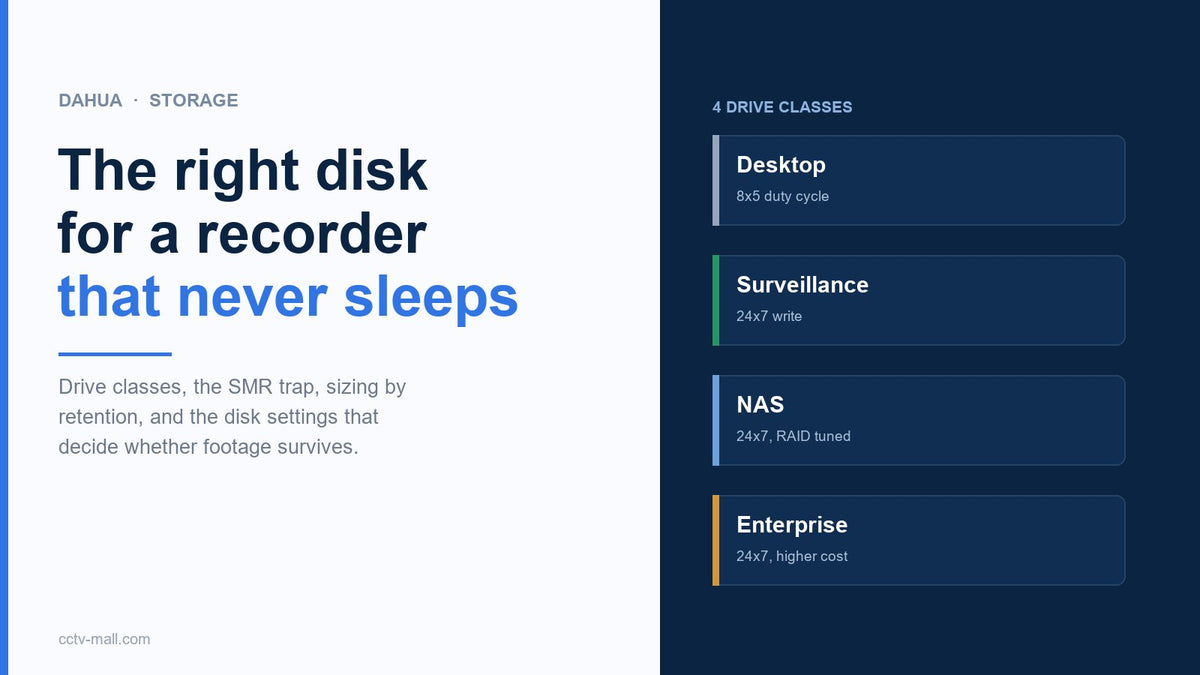
This guide covers the four drive classes and where each one belongs, the one specification that ruins otherwise sensible purchases, how to size capacity from the recorder's own estimator, and the disk settings that determine whether footage is still there when someone asks for it.
TL;DR
- Buy a drive rated for continuous write. Desktop drives are built for an 8×5 duty cycle and a recorder runs 24×7.
- Check that the model is CMR, not SMR. Shingled drives stall on sustained writes, and surveillance is nothing but sustained writes.
- Size with STORAGE > Rec Estimate: "By Space" tells you retention, "By Time" tells you the disk you need.
- Set Disk Full to overwrite and confirm Delete Expired Files — those two settings decide whether recording survives unattended.
Recommended Dahua network recorders
A rotating selection from our current stock. Availability and pricing are confirmed at checkout.


Check stock or request a quote
Enter a Dahua part number to see live availability, or send it straight to our team for a price and lead time.
What the Recorder Actually Requires
A network video recorder writes a small number of large, sequential streams and never stops. There is no idle time for the drive to park, no user closing files, and no operating system caching the pain away. The workload is closer to a server than to a desktop, which is why drive vendors publish separate lines for it.
Physically, the requirement is simple: a 3.5-inch SATA drive, mounted in the bay the chassis provides, on a supply that can handle the spin-up current. Larger chassis accept several drives and support redundancy — the manual describes setting a second disk as a redundant disk to back up recorded files, which is worth doing on any site where losing a week of footage would be a problem.
Two practical details are easy to miss. The first is the maximum capacity per bay, which varies by model and firmware: check the datasheet for the specific recorder rather than assuming that a larger disk will be recognised. The second appears in the manual's rear-panel notes for models with an eSATA port — when an external SATA disk is connected, the internal drive has to be jumpered accordingly. If you add external storage and the internal disk stops appearing, that jumper is the first thing to check.
Four Drive Classes and Where They Fit
| Class | Designed for | In a recorder |
|---|---|---|
| Desktop | Intermittent use, 8×5 duty cycle | Works at first, then early failure — do not specify it |
| Surveillance | Continuous 24×7 write, vibration in multi-bay boxes | The default choice |
| NAS | 24×7, tuned for RAID retries and multi-drive vibration | Fine where budget allows, especially in large chassis |
| Enterprise | 24×7, highest workload ratings, highest cost | Overkill for most sites, justified in critical ones |
The differences are not marketing. Surveillance drives are tuned for long sequential writes, tolerate the vibration of neighbouring drives, and are validated against a workload rating expressed in terabytes per year — the number that actually matters when a drive writes 40 GB a day, every day. A desktop drive with the same capacity may carry a workload rating a fraction of that.
Where the budget is tight, the correct trade is smaller capacity in the right class rather than larger capacity in the wrong one. A 4 TB surveillance drive that survives four years is cheaper than two 8 TB desktop drives that fail in eighteen months, and it does not cost a service visit.
The SMR Trap
Shingled magnetic recording packs more data onto a platter by overlapping tracks. That is excellent for archives and terrible for sustained writing, because the drive must repeatedly rewrite neighbouring tracks to modify one. The symptom in a recorder is distinctive: recording appears to work, then write throughput collapses, playback stutters, and channels drop out under load. Formatting does not fix it.
The problem is that the specification is often not printed on the box. Vendor datasheets list it for most current models, and the safe approach is to check the model number against the manufacturer's own documentation before ordering a batch. Where the answer is not published, buy from a surveillance line — those products are almost always conventional recording for exactly this reason.
Two related specifications deserve the same scrutiny. Workload rating, in terabytes written per year, should comfortably exceed what the site will actually write; a recorder pushing 45 GB a day writes roughly 16 TB a year before overhead. And power draw at spin-up matters in multi-bay chassis, because three drives starting together can trip a marginal supply and produce symptoms that look like disk faults.
Sizing with the Recorder's Own Estimator
The recorder has a built-in calculator that most installers never open: Main Menu > STORAGE > Rec Estimate. It has two tabs, and they answer opposite questions.
By Space takes the disk you have and returns the recording time available, given the current channel settings. Choose the disk, and the device reports how long it can keep recording — useful when a client asks "how much retention do I get with what is installed".
By Time takes the retention period and returns the total capacity required. Enter the days, read the figure, and size the purchase accordingly. The manual notes the result can be copied to other channels, which is how you build a multi-channel estimate without typing the same numbers eight times.

For a quick sanity check before you open the menu, the manual's capacity appendix reduces to the same arithmetic: gigabytes per day = megabits per second × 10.8. Multiply by retention days, multiply by channels, then add headroom.
| Channels, continuous 30 days | 2 Mbps | 4 Mbps | 6 Mbps |
|---|---|---|---|
| 4 channels | 2.6 TB | 5.2 TB | 7.8 TB |
| 8 channels | 5.2 TB | 10.4 TB | 15.6 TB |
| 16 channels | 10.4 TB | 20.7 TB | 31.1 TB |
Motion-only recording reduces the average, but size for continuous unless you can guarantee the duty cycle. A site that records continuously "temporarily" during an incident will exceed the plan, and the retention you promised will silently shrink.
Retention has a second lever that costs nothing to pull: the sub stream. A channel recorded at 0.5 Mbps instead of 4 Mbps consumes an eighth of the space, which is why many projects record the main stream on a schedule and the sub stream continuously for the live grid. The RTSP stream mapping guide explains which stream is which; the storage consequence is simpler — bitrate is the only lever you can still move after the hardware is bought.
Disk Settings That Decide Whether Footage Survives
Hardware choice sets the ceiling; these settings decide what happens the week nobody is watching.
Disk Full. Set it to overwrite. The alternative, stopping, means a recorder that quietly stops recording when the disk fills — and on a site with no monitoring, nobody notices for months. Overwrite keeps the most recent footage, which is almost always what an investigation needs.
Delete Expired Files. The manual allows scheduling automatic deletion or turning it off entirely, and it states plainly that deleted files cannot be recovered. Use it deliberately, not as a space-management reflex.
Disk properties. In STORAGE > Disk Manager each disk can be set to read-write, read-only or redundant. Read-only protects a disk holding evidence; redundant mirrors recordings across two disks on models that support it.
Quota versus group mode. The recorder can allocate space by channel quota or by disk group, and the manual notes that the two modes cannot be selected at the same time. On a multi-disk box, this decision determines whether one busy channel can consume the whole array.
Formatting. Formatting erases everything on the disk, and the device offers an option to erase the HDD database as well. That second option is easy to click and expensive to regret: it deletes AI search data and the uploaded audio files, so the footage may remain while the smart search that makes it findable does not.
Six Symptoms of the Wrong Disk
| Symptom | What it suggests | Next step |
|---|---|---|
| Beeping, disk light on | Disk not detected or failed | Reseat power and data, then run the detection path |
| Formats in a loop | Disk failing surface test, or wrong capacity for the model | Test the disk on a PC, check the datasheet limit |
| Drops out under load | SMR behaviour or marginal power | Confirm recording method, measure the supply |
| Playback stutters | Throughput too low for simultaneous read and write | Reduce main-stream bitrate, split across disks |
| Disk vanishes after reboot | eSATA jumper, cabling or a disk that does not wake | Check jumper, reseat, test the drive elsewhere |
| Capacity reported wrong | Model or firmware limit, or a multi-disk array partially used | Verify supported capacity, check disk group mode |
Note the third row. SMR problems rarely appear during commissioning, when the drive is empty and writes are cheap. They appear weeks later, when the disk is full enough that every write requires rewriting neighbouring tracks. That delay is why the specification matters more than a successful first install.
Installation Notes That Prevent Return Visits
| Step | Detail |
|---|---|
| Power off and isolate | Unplug before opening; note the drive before removal |
| Anti-static | Handle by the edges; a dead drive from handling is not a warranty case |
| Mount with all four screws | Vibration is the enemy in multi-bay chassis |
| Seat data and power firmly | Most "dead disk" reports are a loose SATA connector |
| Check the health status | The startup wizard's disk step shows health and capacity |
| Format deliberately | New disks need formatting; keep the database option clear on re-installs |
| Record a test clip | Play it back and export it before leaving |
One habit pays for itself repeatedly: photograph the label of the installed drive and store it with the site's documentation. When the drive fails three years later, the replacement decision starts from a known model rather than from whatever is on the shelf.
When to Replace Rather Than Reformat
A failing drive rarely announces itself. It formats successfully, records for a week, then drops a channel for a few seconds, then disappears from the disk manager until the recorder reboots. Each of those events looks like a software glitch, and each one is the drive trying to tell you something.
Four signals justify replacement rather than another format. The disk needs formatting more than once in a year. The recorder beeps at boot or the disk indicator stays in the abnormal state. Playback gaps appear at times when nobody was editing the schedule. And a health check on a PC reports reallocated or pending sectors — the number that matters, because a drive can pass a simple surface scan while continuing to grow that count.
The economics are not close. A replacement surveillance drive costs less than a single site visit, and the alternative is discovering the failure during an incident review, when the missing week is the week the client needed. Keep a spare of the same class on the van if you maintain multiple sites: it turns a two-trip job into one.
If the chassis itself is the limitation — too few bays, or a supported capacity that cannot meet the retention the client now wants — replacing the recorder is the cheaper answer. The Dahua network recorder range lists the families by bay count and channel capacity.
FAQ
Can I use a desktop hard drive in a Dahua NVR?It will usually work initially. It is not rated for continuous duty, so expect a shorter service life and a failure that arrives without warning. Specify a surveillance-class drive instead.
How do I know if a drive is SMR?Check the manufacturer's datasheet for that exact model number. Where it is not published, buying from a surveillance line is the safer route, because those products are designed for sustained writes.
What capacity can my recorder take?It varies by model and firmware, so the datasheet for the specific unit is the only reliable answer. Installing beyond the supported maximum can produce format loops or a disk that is only partly recognised.
Do I need to format a new disk?Yes. The recorder must initialise the disk before it can store footage, and the disk manager is where that happens.
Should I set Disk Full to stop or overwrite?Overwrite, unless a compliance rule requires retention to stop. Stopping means recording ends silently when the disk fills.
What does erasing the HDD database do?It removes the AI search index and uploaded audio files stored with the recordings. Keep the option clear unless you deliberately want to wipe that metadata.
Is a USB drive a substitute for an internal disk?No. USB storage is for backup and export. Continuous recording belongs on an internal SATA disk rated for it.
Can I add a second disk later?Usually yes, subject to the model's bay count and supported capacity. The second disk can also be configured as a redundant copy of the recordings where the firmware supports it.
Sources
- Dahua Network Video Recorder User Manual V2.4.2 — §5.11.1 Basic (Disk Full, file length, delete expired files); §5.11.2 Disk Manager (properties, format, database erase); §5.11.5 Disk Quota; §5.11.7 Record Estimate (By Space / By Time); Appendix 1 HDD Capacity Calculation; §3.3 HDD Installation; eSATA jumper notes in the rear-panel tables.
- Dahua Technology — per-model datasheets for bay count, supported capacity and power budget.
- Shingled magnetic recording — background on why SMR drives stall under sustained write load.
The disk is the cheapest part of a recorder and the only part that fails predictably. Buying the right class at the right size, and setting overwrite before you leave, removes most of the storage calls that arrive months later. If the installed disk has already failed, the disk detection checklist separates a cabling fault from a dead drive in a few minutes.
Tell us the channel count, the bitrate you plan to record at, and the retention the client expects — we will confirm the disk size and the recorder family that supports it, and check stock for the rebuild.


