

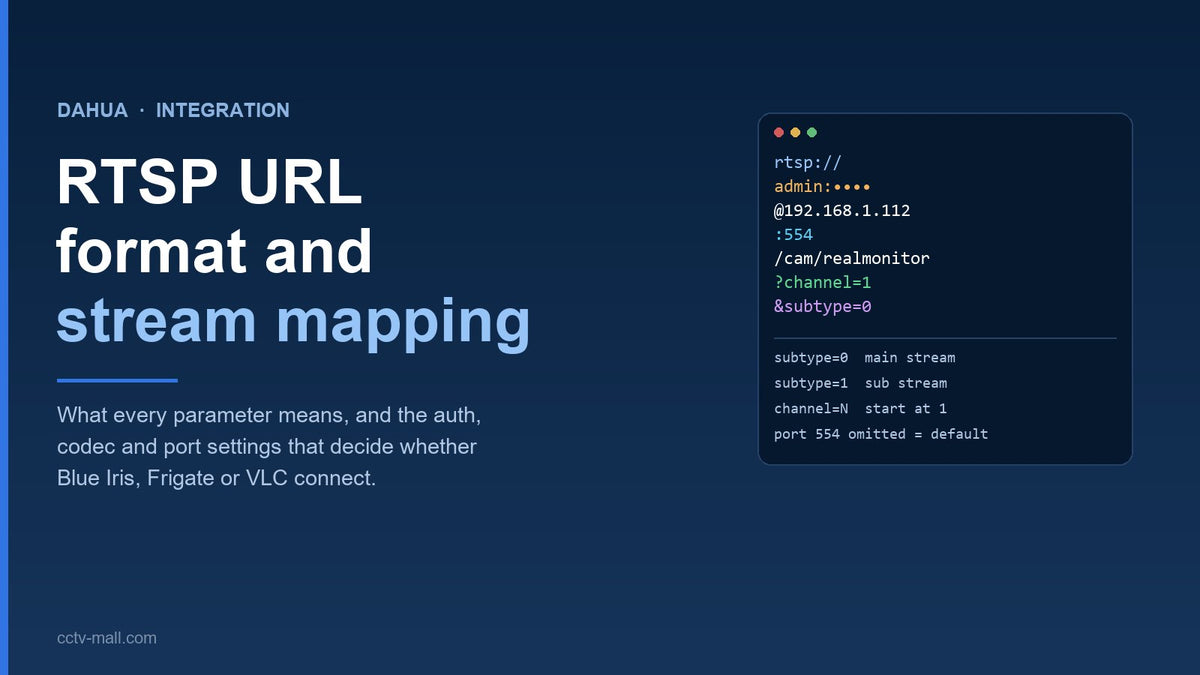
RTSP is the one interface every Dahua camera and recorder exposes to the outside world. It is also the interface that breaks most often during integration, because the URL looks trivial — one line of text — and hides six parameters that all have to be right.
The format itself is documented in the camera manual, and it has not changed in years. What changes is the environment around it: a VMS that only decodes H.264, a password containing an @, a substream that was disabled to save bandwidth, a port that an installer moved off 554, or a router that forwards the port but rewrites the source.
This guide walks the URL parameter by parameter, maps the streams you will actually use, covers the authentication failures that look like wrong credentials, and gives working starting points for Dahua RTSP in Blue Iris, Frigate and VLC.
TL;DR
- The path is always
/cam/realmonitor?channel=N&subtype=X; port 554 is default and can be omitted. -
subtype=0is the main stream,subtype=1is the sub stream. Analytics and phone views belong on the sub stream. - Percent-encode passwords containing
@ : / # ? &, or the client will parse the wrong host. - If your VMS shows no picture, check the codec before the network: H.265 and Smart Codec are the two most common causes.
Recommended Dahua IP cameras
A rotating selection from our current stock. Availability and pricing are confirmed at checkout.


Check stock or request a quote
Enter a Dahua part number to see live availability, or send it straight to our team for a price and lead time.
The URL, Parameter by Parameter
Dahua publishes one example and it covers every case:
rtsp://admin:password@192.168.1.112:554/cam/realmonitor?channel=1&subtype=0The manual breaks it into six parts. Username and password are the device credentials, not a separate RTSP account — unless you created one. IP is the device address on the network you are calling from. Port defaults to 554 and the manual states explicitly that you can leave it out when the default is unchanged. Channel starts at 1, so the first camera is channel=1 and the second is channel=2. Subtype selects the stream: 0 for main, 1 for sub.
Everything after the port is a fixed path with two query parameters. There is no per-model variation in the path itself, which is why the same URL works across the current camera families. If a guide tells you to use /Streaming/Channels/101, that is a different vendor's convention leaking into search results.

One practical note about the port. The camera defaults are HTTP 80, TCP service 37777, UDP 37778, RTSP 554, HTTPS 443 and RTMP 1935. Installers routinely change the HTTP port for security and leave 554 alone, but not always. When a client insists "the URL works for the old system", check whether the old system had a port number embedded in its configuration — that is the single most common reason a copied URL fails on a new VMS.
Channel and Subtype: Mapping the Streams
On a standalone camera, channel is almost always 1 and the interesting choice is the subtype. On a recorder, the channel is the recorder channel, so a sixteen-channel NVR addresses its eighth camera as channel=8. If your unit does not answer on the expected path, run ONVIF discovery instead of guessing: the camera returns a service URI that you can paste directly into the client.
| Subtype | Stream | Typical use | Bandwidth planning |
|---|---|---|---|
| 0 | Main | Recorder storage, evidence export, long-range identification | 2–6 Mbps per channel at 4 MP |
| 1 | Sub | Mobile view, analytics detection, multi-tile walls | 0.5–1 Mbps per channel |
| 2 | Third | Depends on firmware; not present on every model | Verify before you rely on it |
The sub stream is enabled by default, but it can be switched off. When it is off, subtype=1 does not fall back to the main stream — the client gets nothing, and the failure looks like a broken URL. That asymmetry catches out integrators who test on one camera and deploy on a batch where someone disabled the sub stream to save storage.
The reason to care is arithmetic. A 4 MP main stream at 4 Mbps writes about 43 GB per day; the same camera's sub stream at 0.5 Mbps writes about 5.4 GB. Analytics engines and phone views rarely need more than 640×480 to 1280×720, so pointing them at the main stream wastes bandwidth and CPU without improving detection.
Authentication: the 401 That Isn't a Wrong Password
An RTSP client that reports 401 usually has the right password and the wrong encoding. The URL is a URI, so reserved characters inside the credentials must be percent-encoded: @ becomes %40, : becomes %3A, / becomes %2F, # becomes %23 and ? becomes %3F. A password like Pass@2026 pasted unencoded turns the host into 2026@192.168.1.112 and the client reports an authentication failure that has nothing to do with the password.
Two other things produce the same message. First, the device may be using digest authentication while the client only offers basic, or the reverse; Dahua's private-protocol authentication mode has a Security Mode and a Compatibility Mode, and the compatibility setting exists precisely for older clients. Second, the account may lack remote-preview rights. Create a dedicated RTSP account with preview only, and never reuse the administrator credentials in a VMS configuration file that gets shared by email.
Anonymous login deserves a warning rather than a recommendation. The camera can be configured to accept a session with no credentials, which is convenient during a bench test and unacceptable on a client network: it grants preview to anyone who can reach port 554. If you enabled it to prove the stream works, turn it off before handover and confirm with a fresh connection that requires credentials.
For sites where the stream crosses an untrusted segment, the camera supports RTSP over TLS. It is off by default and the manual frames the trade-off plainly: disabling it is a safety risk. Enabling it requires a certificate on the device, and your VMS must be configured for RTSPS rather than plain RTSP, which is a deliberate friction point — most deployments choose a VPN tunnel instead and keep plain RTSP inside it.
Codec: Why It Plays in the Dahua App but Not in Your VMS
Dahua cameras offer five compression modes: H.264 (main profile), H.264H (high profile, lower bandwidth), H.264B (baseline), H.265 (main profile) and MJPEG. Every mode is valid for recording, and not every mode is valid for a given client. Browser-based players are the most restrictive; many decode H.264 only, which is why a camera can look perfect on the recorder's HDMI output and blank in a web dashboard.
Smart Codec is the second trap. It improves compressibility by changing how the encoder works, and the manual is explicit about the cost: once Smart Codec is enabled, the device stops supporting the third bit stream, ROI and smart event detection. On an integration that depends on analytics metadata or a third stream, enabling Smart Codec silently removes capabilities the client was promised.
A workable default for third-party integration is H.264H on the sub stream and either H.264H or H.265 on the main stream. That gives the VMS a universally decodable stream for detection and preview while keeping storage efficient on the main stream. If the client is old enough to predate H.264, the manual's guidance is blunter still: baseline, CIF resolution and audio disabled.
Test Before You Integrate
Do not debug inside the VMS. Prove the stream first with a tool that tells you what it received.
ffprobe -rtsp_transport tcp -v error \
  -select_streams v:0 -show_entries stream=codec_name,width,height,avg_frame_rate \
  -of default=nw=1 "rtsp://user:pass@192.168.1.112:554/cam/realmonitor?channel=1&subtype=1"
You should see the codec name, the resolution and the frame rate. If ffprobe returns immediately with an error, the problem is the URL or the credentials. If it connects and then hangs, the problem is transport or bandwidth. If it prints a codec your VMS cannot decode, the problem is the encoder setting, not the network.
Two smaller checks save time later. Force TCP when testing: RTSP defaults to UDP, and UDP over a congested or NATed link loses packets silently, which shows up as smearing or freezes rather than a clean error. And confirm the time in the stream, because a camera whose clock is wrong produces recordings that are useless as evidence even though every technical indicator is green.
Starting Points for Blue Iris and Frigate
Blue Iris. Add the camera as a generic/ONVIF device, set the address, port 554 and the path with channel=1&subtype=0, then add the sub stream as a second stream on the same camera using subtype=1. The main stream is for recording, the sub stream for the live grid; reversing them is why some installations feel sluggish with eight cameras on screen. If hardware decoding is enabled and the picture disappears, the GPU does not support the stream's codec — switch the sub stream to H.264H.
Frigate. The pattern that behaves well is a restream plus separate roles: the sub stream feeds detection, the main stream feeds recording, and the browser gets an H.264 stream it can decode. A minimal camera entry looks like this:
cameras:
  front_gate:
    ffmpeg:
      inputs:
        - path: rtsp://user:pass@192.168.1.112:554/cam/realmonitor?channel=1&subtype=1
          roles: [detect]
        - path: rtsp://user:pass@192.168.1.112:554/cam/realmonitor?channel=1&subtype=0
          roles: [record]
    detect:
      width: 704
      height: 576
      fps: 5
Match detect dimensions to the substream resolution rather than scaling the main stream down; it is the difference between a two-core appliance keeping up and falling behind. If the streams stall after a few hours, add -rtsp_transport tcp to the ffmpeg input args, and confirm the camera's I-frame interval is close to its frame rate so keyframes arrive often enough for the detector to start cleanly.
Both products work far better when the camera is on a wired segment. A PoE camera that drops its link for two seconds at a time will produce two-second gaps in every client, and no amount of RTSP tuning fixes a marginal cable — if channels are flapping, resolve that first with the PoE link checklist.
When It Works on the LAN but Not From Outside
RTSP was designed for local networks and it behaves like it. Publishing port 554 to the internet puts an unencrypted stream with a password in front of the entire internet, and scanners find it within hours. The realistic options, in order of preference, are: a VPN into the site, RTSP over TLS with a client that supports it, and — only if the client insists — port forwarding restricted to fixed source addresses with a dedicated preview-only account and a non-default port.
For remote viewing by phone, RTSP is the wrong tool anyway. Use the app path instead: P2P over the recorder's serial number keeps the stream outbound and needs no inbound exposure at all. If the client wants both, keep them separate — one account for the app, one preview-only account for the VMS — so that revoking access in one place does not break the other. The DMSS setup guide covers that side of the deployment in detail.
Nine Failures and What They Mean
| Message | Most likely cause | Fix |
|---|---|---|
| 401 Unauthorized | Unencoded special characters, wrong auth mode, or missing preview rights | Percent-encode, test with the admin account, then create a scoped account |
| 404 Not Found | Wrong path, or a channel number the device does not have | Use /cam/realmonitor and a channel that exists |
| Connection refused | RTSP port changed, or a firewall rule blocking it | Read the port from the device, then retest |
| Connects, no video | Codec unsupported, or substream disabled | Switch to H.264H, enable the sub stream |
| Grey or green frames | Keyframe interval too long, or partial stream loss | Shorten the I-frame interval, force TCP |
| Plays five seconds, then freezes | Bandwidth or MTU limits on the path | Move to the sub stream, test TCP |
| Works for hours, then dies | Idle session timeout on the NAT or firewall | Enable client-side keepalive, or use a VPN |
| Works on LAN only | No route to the segment, or no port publication | Fix routing first; publish ports only as a last resort |
| Stutter on one channel only | Packet loss on that cable or PoE port | Swap the patch lead, check PoE budget and link errors |
Integration Checklist
| Check | Pass condition |
|---|---|
| URL verified | ffprobe returns codec, resolution and frame rate |
| Both streams present | subtype=0 and subtype=1 both answer |
| Codec compatible | Sub stream H.264H; main stream matches VMS support |
| Smart Codec decision recorded | Off if analytics or a third stream is required |
| Dedicated account | Preview-only user, credentials in a password manager |
| Anonymous login off | Connection without credentials is refused |
| Transport chosen | TCP forced where the path is lossy |
| Exposure decision documented | VPN or TLS, or a written exception |
| Clock correct | Stream timestamp matches the site clock |
| I-frame interval | Close to the frame rate on the detect stream |
If you are specifying hardware for an integration, choose models whose firmware family documents both streams and the codec you intend to use. The Dahua network camera range lists the current families, and the network recorder range covers the boxes that expose per-channel RTSP when you would rather integrate one address than twenty.
FAQ
What is the default RTSP port on a Dahua camera?554. It can be changed on the port configuration page, and if it was changed the URL has to carry the new value after the address.
Do I need the port in the URL?No, when it is still 554. The manual explicitly allows omitting it. Include it once you change the port, or when a client insists on explicit parameters.
What do channel and subtype actually select?Channel is the camera or the recorder channel, numbered from 1. Subtype 0 is the main stream, subtype 1 is the sub stream, and any further stream depends on whether the model and firmware enable it.
Why does the stream work in VLC but not in my VMS?VLC decodes almost everything. A VMS usually supports a narrower set, and H.265 or MJPEG are the usual culprits. Switch the stream to H.264H and retest before touching network settings.
Why is my password rejected even though it works in the web interface?Almost always unencoded characters. @, :, #, ? and & inside the credentials have to be percent-encoded, or the client parses part of the password as the host.
Should I expose RTSP to the internet for remote viewing?No. Use a VPN, or RTSP over TLS if the client supports it. An exposed 554 port is an unencrypted stream guarded by a single password, and it is scanned continuously.
Does enabling Smart Codec affect RTSP clients?It can. The manual notes that Smart Codec disables the third bit stream, ROI and smart event detection, so any client relying on those stops working even though the stream still plays.
Can I pull one RTSP URL from a recorder instead of twenty from cameras?Usually yes: the recorder exposes per-channel streams, with channel matching the recorder channel. If your unit does not answer on the expected path, use ONVIF discovery to obtain the exact URI rather than guessing.
Sources
- Dahua Network Camera Web 5.0 Operation Manual V1.3.1 — §6.3 Port, Table 6-12 (RTSP port 554, URL format, channel and subtype definitions); §6.2.2.1 Encode, Table 6-9 (compression modes, Smart Codec restrictions); §6.7.3 User (anonymous login); §9 RTSP over TLS.
- ONVIF specifications — discovery and streaming profile behaviour for third-party VMS integration.
- Frigate documentation — camera inputs, detect roles and go2rtc restreaming.
- Dahua Technology — firmware and product pages for verifying stream support per model.
Integration work exposes gaps that the recorder's own interface hides. If channels are dropping, start with the record schedule and mode check before blaming the VMS — a stream that plays but records nothing is a scheduling problem, not an RTSP one.
If you need cameras and recorders that document two streams and a known codec set, the team can confirm stock against your channel list and match models to the VMS you are deploying.


