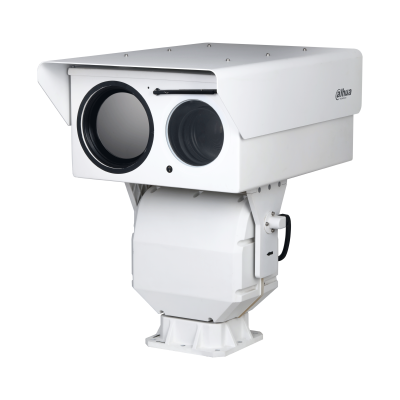

If you’ve ever struggled to access your Hector Weyl IP camera remotely because its IP address keeps changing, you’re far from alone. Most Internet Service Providers (ISPs) assign dynamic IP addresses—temporary addresses that shift when your camera reboots or your internet connection resets. This is nothing short of a nightmare for security setups: one IP change, and you lose access to live feeds, recordings, or camera controls entirely.

The solution? DDNS (Dynamic Domain Name System). DDNS links your camera’s changing IP address to a fixed, easy-to-remember domain name (e.g., “warehouse-cam.hectorweyl.ddns.net”), ensuring you can always connect—no matter how many times the IP address fluctuates.
This guide breaks down everything you need to know about configuring DDNS for Hector Weyl IP cameras, using their official 2024 product manual as the primary reference. We’ll cover what DDNS does, when to use it, step-by-step setup instructions, and how to troubleshoot common issues.
1. What Is DDNS, and Why Do Hector Weyl Cameras Need It?
DDNS is a service that automatically updates the association between a domain name and a dynamic IP address. For Hector Weyl cameras, its workflow is straightforward:

- You register a domain name with a DDNS provider (e.g., NO-IP, DynDNS).
- Your camera periodically sends its current IP address to the DDNS provider (via Hector Weyl’s built-in DDNS settings).
- When you attempt to access the camera remotely (e.g., through the HMSS app or web interface), you use the fixed domain name—the DDNS provider then redirects your request to the camera’s latest IP address.
When to Use DDNS for Hector Weyl Cameras
Per Hector Weyl’s official manual, DDNS is non-negotiable in the following scenarios:

- Your camera uses PPPoE: Most ISPs assign dynamic public IPs to PPPoE connections, which are common in remote locations like construction sites or rural warehouses.
- Your camera uses DHCP: If your router assigns dynamic private IPs (e.g., for home or small-office setups) and you need remote access (via port forwarding), DDNS prevents connection loss when the IP changes.
- You manage multiple cameras: Remembering a domain name (e.g., “retail-entrance-cam.ddns.net”) is far easier than tracking 10+ dynamic IP addresses.
For cameras with static public IPs (assigned by your ISP for a fee), DDNS is unnecessary—you can use the static IP directly. However, DDNS remains the backbone of reliable remote access for 90% of professional monitoring setups.
2. Prerequisites Before Configuring DDNS
Before starting, ensure you have the following ready (per Hector Weyl’s requirements):

- A DDNS Provider Account: A valid account with a supported DDNS provider. Hector Weyl’s manual explicitly supports three providers (see Section 3 for details: NO-IP, DynDNS, FNT DDNS).
- A Registered Domain Name: A domain name from your DDNS provider (e.g., “hectorweyl-cam-01.no-ip.org”).
-
Functional Camera Connectivity:
- The Hector Weyl camera is powered on, connected to the internet, and has a valid IP address (via TCP/IP or PPPoE).
- You’ve logged into the camera’s web interface (default IP: 192.168.1.86; default username: “admin”).
-
Network Permissions: Ensure your router/firewall does not block outgoing connections to your DDNS provider’s server (most home networks don’t, but corporate networks may require exceptions).

3. Key DDNS Parameters for Hector Weyl Cameras
When you navigate to Settings > Network Settings > DDNS in the camera’s web interface, you’ll see a configuration page with 6 core parameters. Below is what each does, plus Hector Weyl-specific guidelines:
| Parameter | What It Does | Hector Weyl Details & Defaults |
|---|---|---|
| Server Type | Selects your DDNS provider (Hector Weyl offers preconfigured options). | Supported providers: • NO-IP DDNS (default) • DynDNS • FNT DDNS ⚠️ Unlisted providers will not work. |
| Server Address | The DDNS provider’s update server URL (auto-filled when you select a Server Type). | Auto-populated: • NO-IP: dynupdate.no-ip.com • DynDNS: members.dyndns.org • FNT: main.faceaip.net ⚠️ Do NOT edit this—incorrect addresses break updates. |
| Domain Name | Your registered DDNS domain (e.g., “warehouse-cam.no-ip.org”). | Enter exactly as provided by your DDNS provider (case-insensitive, but no extra spaces). |
| Username | Your DDNS provider account username (e.g., “hectorweyl-admin”). | Case-sensitive for most providers (e.g., “HectorWeyl-Admin” ≠ “hectorweyl-admin”). |
| Password | Your DDNS provider account password. | Hidden by default (shown as dots). Double-check for typos—incorrect passwords block updates. |
| Update Period | How often the camera sends its current IP to the DDNS provider. | Default: 10 minutes (range: 1–500 minutes). Use 5–15 minutes for unstable connections (e.g., rural internet); 30+ minutes for stable connections (to reduce server load). |
4. Step-by-Step: Configuring DDNS on Hector Weyl Cameras
Hector Weyl’s interface simplifies DDNS setup—follow these steps (directly from the official manual):
Step 1: Access the DDNS Configuration Page
- Log into your Hector Weyl camera’s web interface using a computer on the same local network.
- Click the Settings icon (top-right corner).
- Under “Network Settings,” select DDNS. The DDNS setup page will load.
Step 2: Select Your DDNS Provider & Enter Credentials
- From the “Server Type” dropdown menu, select your DDNS provider (e.g., “NO-IP DDNS”). The “Server Address” will auto-fill—do not edit this.
- In the “Domain Name” field, enter your registered DDNS domain (e.g., “hectorweyl-cam-01.no-ip.org”).
- Enter your DDNS provider’s “Username” and “Password” (copy-paste from your provider’s account page to avoid typos).
- Adjust the “Update Period” (optional):
- For unstable internet: Set to 5–10 minutes.
- For stable internet: Keep the 10-minute default or increase to 15 minutes.

Step 3: Save & Test the DDNS Connection
- Click Save at the bottom of the page. The camera will immediately send its current IP address to the DDNS provider.
- Verify the connection with two checks:
- Check the DDNS Provider Dashboard: Log into your DDNS provider’s website (e.g., no-ip.com) and confirm the “Current IP” matches your camera’s IP (find the camera’s IP via Settings > Network Settings > TCP/IP).
- Test Remote Access: From a device outside your local network (e.g., a phone with mobile data), open the Hector Weyl HMSS app or a web browser. Enter your DDNS domain (e.g., “http://hectorweyl-cam-01.no-ip.org:80”)—if you see the camera’s live feed, DDNS is working!
5. Common DDNS Issues & How to Fix Them
DDNS failures usually stem from incorrect credentials or network blocks. Below are the most frequent issues with Hector Weyl cameras and their solutions (based on the manual and real-world troubleshooting):

Issue 1: “The DDNS server says ‘update failed’ (no error code).”
Why?
- Incorrect username or password (typos or case sensitivity).
- Expired DDNS domain (many free providers require monthly renewal).
- The camera cannot reach the DDNS server (blocked by a firewall/router).
Fix:
- Re-enter your username and password (copy-paste from your DDNS provider’s account page).
- Log into your DDNS provider’s website to confirm your domain is active (renew if expired).
- Test server connectivity: Use the camera’s “Ping Test” (if supported) or contact your ISP to unblock the server address (e.g., dynupdate.no-ip.com).

Issue 2: “I can’t access the camera via the DDNS domain, but the IP is correct.”
Why?
- Missing port forwarding (for private IPs) or blocked HTTP/RTSP ports on the camera.
Fix:
- If the camera uses a private IP (e.g., 192.168.1.100), set up port forwarding on your router: Forward port 80 (HTTP) or 554 (RTSP) to the camera’s private IP.
- Confirm ports are open: Use an online port checker (e.g., canyouseeme.org) to test port 80 or 554 with your DDNS domain.
- If ports are blocked, contact your ISP to open them (common for corporate or public networks).
Issue 3: “The DDNS updates work, but remote access is slow.”
Why?
- Overly long “Update Period” (the domain briefly points to an old IP) or high latency from the DDNS provider.
Fix:
- Reduce the “Update Period” to 5–10 minutes (see Section 3) to minimize IP-DNS mismatch time.
- Switch to a low-latency DDNS provider (e.g., NO-IP is known for speed; avoid overcrowded free providers).
6. Best Practices for Stable DDNS on Hector Weyl Cameras
To ensure long-term DDNS reliability, follow these tips from Hector Weyl’s engineering team:
- Use a Paid DDNS Plan: Free plans often have domain expiration, slow updates, or ads. Paid plans (e.g., NO-IP Plus, $12/year) offer faster updates and permanent domains.
- Enable DDNS Health Checks: Some Hector Weyl cameras support “Health Mail” (via Settings > Network Settings > SMTP)—configure it to receive emails if DDNS updates fail.
- Backup Your DDNS Credentials: Save your domain name, username, and password in a secure location (e.g., your VMS dashboard). If you lose access to your DDNS account, these will be critical for reconfiguration.
- Update Camera Firmware: Hector Weyl releases firmware updates to fix DDNS bugs (e.g., failed updates due to server changes). Check for updates regularly via Settings > System Administration > Upgrade.
- Avoid Overlapping Services: If using PPPoE (see Section 2), enable DDNS only after PPPoE is working—PPPoE must establish an internet connection first for DDNS to send IP updates.
Final Thoughts
DDNS is the unsung hero of reliable remote access for Hector Weyl IP cameras. By linking your camera’s dynamic IP to a fixed domain, it eliminates the frustration of lost connections and IP tracking. Following the manual’s guidelines—choosing a supported provider, entering correct credentials, and testing connectivity—lets you set up DDNS in 10 minutes or less.
If you get stuck, refer to Hector Weyl’s full Network Camera Product Manual (linked in your original request) or contact their support team—they can verify provider compatibility or troubleshoot ISP-specific blocks. With DDNS configured correctly, you’ll always have access to your Hector Weyl camera—no matter how many times its IP address changes.